Module 4: Attendant Training (Battery Swap)
Audience: Station Attendants Prerequisite: Module 1 (Getting Started)
Learning Objectives
By the end of this module, trainees will be able to:
- Log in with employee credentials
- Complete the full 6-step battery swap flow
- Identify customers by scanning subscription QR codes
- Scan and read batteries via Bluetooth (ATT and DTA services)
- Understand the cost calculation formula
- Collect payment when required
- Generate and review swap receipts
Flow Diagram
The complete 6-step Attendant Battery Swap workflow:
flowchart TD
    A[Open OvApp] --> B[Select Attendant Role]
    B --> C[Login with Employee Credentials]
    C --> D[Attendant Dashboard]

    D --> S1["Step 1: Customer Identification"]
    S1 --> S1a{Scan QR or Enter ID}
    S1a -->|Scan QR Code| S1b[Camera Scans Customer QR]
    S1a -->|Manual Entry| S1c[Type Subscription ID]
    S1b --> S1d[Customer Details Retrieved<br>Name, Plan, Quota, Rate]
    S1c --> S1d

    S1d --> S2["Step 2: Return Old Battery"]
    S2 --> S2a[Scan Old Battery QR Code]
    S2a --> S2b[BLE Connects to Battery]
    S2b --> S2c["Read ATT Service → Battery ID"]
    S2c --> S2d["Read DTA Service → Remaining Energy (kWh)"]
    S2d --> S2e[Old Battery Recorded]

    S2e --> S3["Step 3: New Battery Assignment"]
    S3 --> S3a[Scan New Battery QR Code]
    S3a --> S3b[BLE Connects to Battery]
    S3b --> S3c[Read ATT → Battery ID]
    S3c --> S3d[Read DTA → Energy Level]
    S3d --> S3e["Calculate Cost:<br>energy_diff = new - old<br>net = diff - quota<br>cost = net × rate"]

    S3e --> S4["Step 4: Review"]
    S4 --> S4a{Quota Covers Cost?}
    S4a -->|Yes| S6["Step 6: Done"]
    S4a -->|No| S5["Step 5: Payment"]

    S5 --> S5a[Collect Payment]
    S5a --> S5b{Payment Method}
    S5b -->|QR Scan| S5c[Scan Payment QR]
    S5b -->|Manual| S5d[Enter Receipt Code]
    S5c --> S5e[Payment Confirmed via MQTT]
    S5d --> S5e

    S5e --> S6
    S6 --> S6a["Receipt Generated:<br>Subscription, Batteries, Energy,<br>Amount, Timestamp"]
    S6a --> S6b[Hand New Battery to Customer]
    S6b --> S6c[Tap New Swap → Return to Step 1]

    style A fill:#4CAF50,color:#fff
    style S1 fill:#2196F3,color:#fff
    style S2 fill:#2196F3,color:#fff
    style S3 fill:#2196F3,color:#fff
    style S4 fill:#2196F3,color:#fff
    style S5 fill:#FF9800,color:#fff
    style S6 fill:#4CAF50,color:#fff
Visual Reference
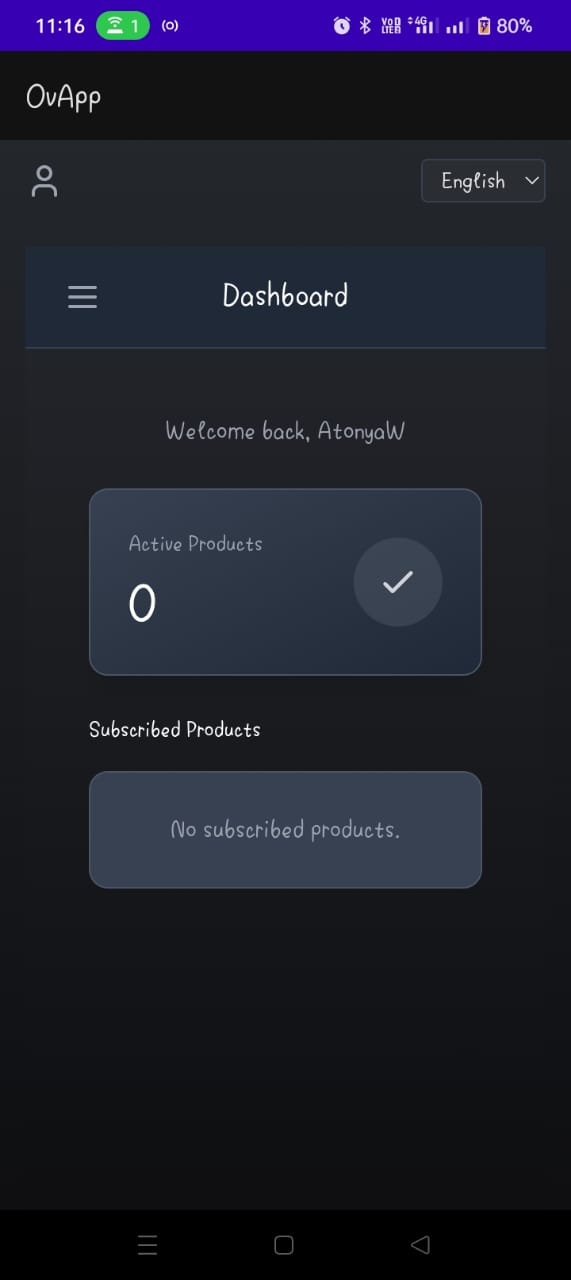
Attendant Dashboard & Swap Start
| Dashboard | Start Swap |
|---|---|
 |
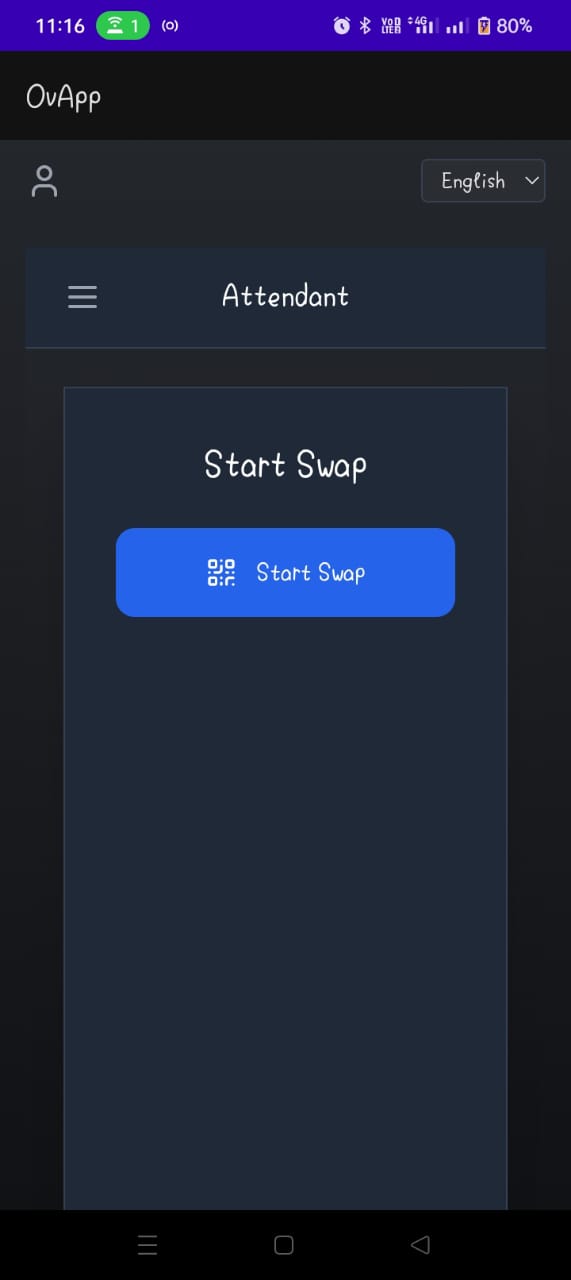 |
| Main attendant dashboard after login | Beginning the swap process |
Customer Identification
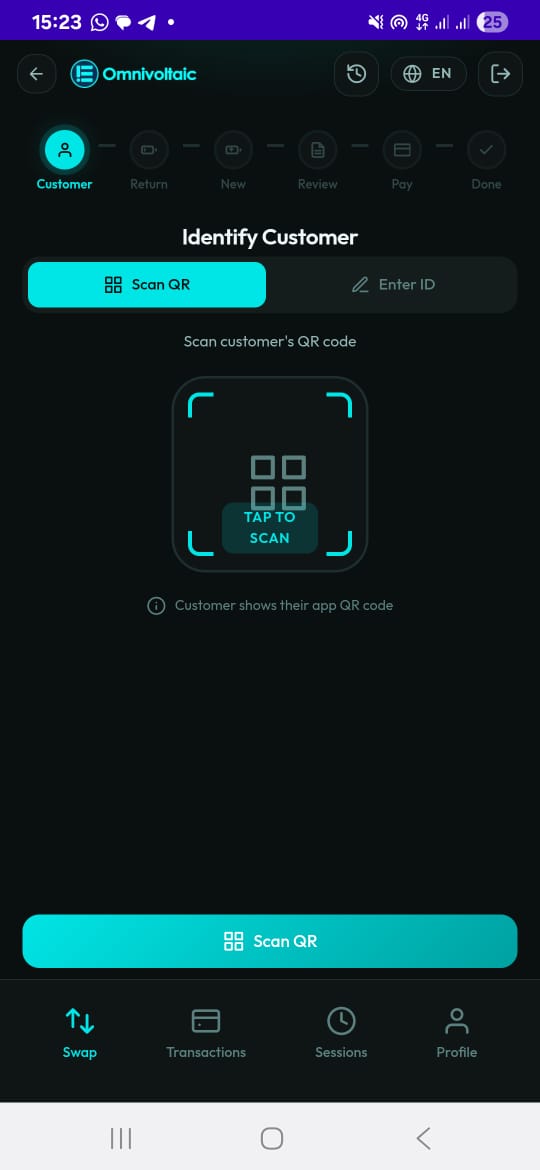
Scanning the customer's subscription QR code to retrieve their details.
Lesson 4.1 -- Login & Overview (5 min)
Key Points
- Attendants log in with employee credentials (username and password)
- The swap flow has 6 steps: Customer > Return > New > Review > Pay > Done
- A progress indicator at the top shows the current step
Hands-On Exercise
- Open OvApp and select the Attendant role
- Log in with your employee credentials
- Observe the 6-step progress bar at the top
Lesson 4.2 -- Step 1: Customer Identification (10 min)
Key Points
- Identify the customer by scanning their subscription QR code (primary) or entering the subscription ID manually (fallback)
- The app retrieves from the backend: customer name, subscription plan, energy quota remaining, swap count, and rate per kWh
Hands-On Exercise
- Ask the customer to show their QR code
- Scan it using the in-app camera
- Verify the customer details shown on screen (name, plan, quota)
- Try the manual entry method: tap Enter ID and type a subscription ID
Common Issues
| Issue | Solution |
|---|---|
| QR code won't scan | Clean the screen; try manual entry |
| Customer not found | Verify the subscription ID with the customer |
| Camera permission denied | Enable camera access in device settings |
Lesson 4.3 -- Step 2: Return Old Battery (10 min)
Key Points
- Scan the QR code on the customer's old (depleted) battery
- The app connects via Bluetooth and reads:
- ATT service -- battery ID
- DTA service -- remaining energy (kWh)
- The old battery's ID and energy are recorded
Hands-On Exercise
- Scan the QR code on the demo battery
- Wait for the Bluetooth connection to establish
- Verify the battery ID and remaining energy are displayed
- Confirm the reading
Common Issues
| Issue | Solution |
|---|---|
| BLE connection fails | Ensure Bluetooth is on; move closer to the battery |
| Energy reading times out | Retry; re-scan the battery if needed |
Lesson 4.4 -- Step 3: New Battery Assignment (10 min)
Key Points
- Same process as Step 2 but for the fresh replacement battery
- The app reads the new battery's ID and energy level
- Cost is calculated automatically:
energy_difference = floor(new_energy - old_energy, 2)
net_energy        = energy_difference - quota_remaining
cost              = net_energy x rate_per_kWh
- If quota covers the full cost, payment is skipped
Hands-On Exercise
- Scan the QR code on the new (charged) battery
- Wait for BLE connection and energy reading
- Observe the calculated energy difference and cost
- Note whether the customer's quota covers the cost
Lesson 4.5 -- Steps 4-6: Review, Pay, Done (10 min)
Key Points
Step 4 -- Review:
- Full breakdown: old/new battery IDs, energies, energy difference, gross cost, quota credit, net amount due
- If quota covers full cost: skip to Done
Step 5 -- Payment:
- Collect payment via QR scan or manual receipt entry
- Payment and service events are reported to the backend via MQTT
Step 6 -- Done:
- Receipt shows: subscription ID, returned battery, issued battery, energy difference, amount due, amount paid, timestamp
- Hand the new battery to the customer
- Tap New Swap to start the next transaction
Hands-On Exercise
- Review the swap summary -- verify all details are correct
- If payment is needed: scan the payment QR or enter the receipt code
- Review the final receipt
- Tap New Swap to return to Step 1
Use Cases
Use Case 1: Standard Battery Swap (Payment Required)
Scenario: A rider arrives at the station with a depleted battery. Their energy quota is exhausted, so payment is required.
Steps:
- Attendant scans the rider's subscription QR code → customer details load
- Scans the old battery QR → BLE reads ATT (ID) and DTA (0.3 kWh remaining)
- Scans the new battery QR → BLE reads ATT (ID) and DTA (1.8 kWh)
- App calculates: energy difference = 1.50 kWh, quota = 0, cost = 1.50 × rate
- Review screen shows breakdown → attendant confirms
- Rider pays → attendant scans QR or enters receipt
- Done screen shows receipt → attendant hands over the new battery
Expected Outcome: Swap is recorded, payment is confirmed, and both battery events are reported via MQTT.
Use Case 2: Swap Covered by Quota (No Payment)
Scenario: A rider has enough quota remaining to cover the full energy cost.
Steps:
- Attendant scans rider's QR → quota shows 2.0 kWh remaining
- Scans old battery → 0.2 kWh remaining
- Scans new battery → 1.5 kWh
- Energy difference = 1.30 kWh; quota = 2.0 kWh → fully covered
- Review screen shows cost = 0 → Payment step is skipped
- Done screen shows receipt → hand over battery
Expected Outcome: No payment is collected. Quota is debited and the swap completes.
Use Case 3: QR Scan Fails -- Manual Fallback
Scenario: The rider's phone screen is cracked and the QR code won't scan.
Steps:
- Attendant attempts to scan QR → fails repeatedly
- Taps Enter ID and asks the rider for their subscription ID
- Types the ID manually → customer details load
- Proceeds with the normal swap flow
Expected Outcome: The swap proceeds normally using manual ID entry as a fallback.
Use Case 4: Bluetooth Disconnects During Battery Read
Scenario: While reading the old battery, the Bluetooth connection drops.
Steps:
- Attendant scans the old battery QR → BLE starts connecting
- Connection drops mid-read (battery moved out of range)
- Attendant moves the battery closer to the phone
- Re-scans the QR code → BLE reconnects
- ATT and DTA readings complete successfully
Expected Outcome: After reconnection, the battery read finishes and the swap continues from where it left off.
Knowledge Check
- What are the 6 steps of the battery swap flow?
- What two BLE services does the app read from a battery?
- How is the swap cost calculated?
- What happens if the customer's quota covers the full cost?
- How is payment collected?
- What gets reported to the backend via MQTT?
- What should you do if the Bluetooth connection drops during a battery read?
Assessment Rubric -- Module 4
| Criteria | Expert (4) | Competent (3) | Developing (2) | Novice (1) |
|---|---|---|---|---|
| Customer Identification | Scans QR and uses manual fallback; explains what data is retrieved | Scans QR and verifies customer details | Scans QR but doesn't verify details | Cannot scan QR or enter ID manually |
| Battery Scanning (Return) | Scans, reads ATT/DTA, explains both services, handles BLE errors | Scans and reads battery data successfully | Scans but needs help interpreting the readings | Cannot scan or connect to the battery |
| Battery Scanning (New) & Cost | Scans, reads data, explains cost formula, identifies quota coverage | Scans new battery and understands the cost shown | Scans but cannot explain how cost is calculated | Cannot complete the new battery scan |
| Review & Payment | Reviews all details, handles both payment methods, explains MQTT reporting | Reviews and collects payment successfully | Completes review but struggles with payment entry | Cannot navigate the review or payment screens |
| Full Swap Completion | Completes end-to-end swap under 5 minutes, handles edge cases | Completes full swap with minor hesitations | Completes swap with guidance at 1-2 steps | Cannot complete the swap without constant help |
| Knowledge Check | Answers all 7 questions correctly | Answers 5-6 correctly | Answers 3-4 correctly | Answers fewer than 3 correctly |
Pass: Average score of 3.0 or above across all criteria.