Module 6: BLE Device Manager Training
Audience: Technical Staff, Distributors Prerequisite: Module 1 (Getting Started)
Learning Objectives
By the end of this module, trainees will be able to:
- Log in and access the BLE Device Manager
- Scan for and connect to OVES devices via Bluetooth
- Navigate all six service tabs in Assets (ATT, CMD, STS, DTA, DIA, HB)
- Read values from a device and copy them
- Write activation codes and configuration changes via the CMD tab
- Trigger a heartbeat to send device data to the server
- Use My Devices to generate and apply activation codes
- Use Retrieve Last Code to re-apply interrupted activations
Flow Diagram -- Assets (BLE Devices)
The diagnostic flow for technical staff using the Assets tool:
flowchart TD
    A[Open OvApp] --> B[Select BLE Device Manager]
    B --> C[Login Required]
    C --> D{Choose Area}

    D -->|Assets| E[BLE Devices Screen]
    E --> F[Bluetooth Scan for Nearby Devices]
    F --> G{Connection Method}
    G -->|Tap Device| H[Connect]
    G -->|Search by Name| H
    G -->|Scan QR Code| H

    H --> I[Device Connected<br>Shows OPID, Image, MAC]
    I --> J{Select Service Tab}

    J -->|ATT| K["ATT Tab<br>Serial, Firmware, Model"]
    J -->|CMD| L["CMD Tab<br>Read/Write Commands"]
    J -->|STS| M["STS Tab<br>Days Remaining, State"]
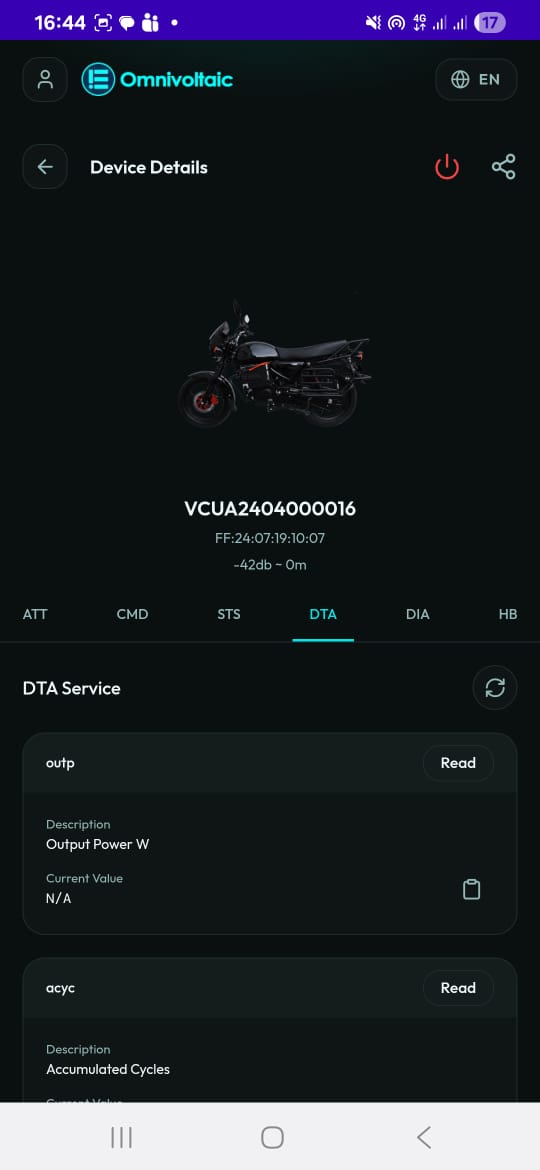
    J -->|DTA| N["DTA Tab<br>Voltage, Capacity, Energy"]
    J -->|DIA| O["DIA Tab<br>Cell Voltages, Temps"]
    J -->|HB| P["HB Tab<br>Collect All → Send via MQTT"]

    K --> Q[Read Value → Copy to Clipboard]
    L --> R[Read / Write / Copy Values]
    M --> Q
    N --> Q
    O --> Q
    P --> S[Trigger Heartbeat → MQTT Publish]

    R --> T[Written Values Persist Locally]

    style A fill:#4CAF50,color:#fff
    style I fill:#2196F3,color:#fff
    style K fill:#FF9800,color:#fff
    style L fill:#f44336,color:#fff
    style M fill:#FF9800,color:#fff
    style N fill:#FF9800,color:#fff
    style O fill:#FF9800,color:#fff
    style P fill:#9C27B0,color:#fff
Flow Diagram -- My Devices (Activation)
The streamlined activation flow for distributors:
flowchart TD
    A[My Devices Screen] --> B[Bluetooth Scan]
    B --> C[Select & Connect to Device]
    C --> D[Activation Screen<br>Image, Name, MAC, Signal]
    D --> E[Select Duration<br>e.g. 1 day, 3 days]
    E --> F{Action}

    F -->|Generate Code| G[Request New Code from Server]
    G --> H[Code Auto-Written to Device via BLE]
    F -->|Retrieve Last Code| I[Fetch Previous Code from Server]
    I --> H

    H --> J{Verify}
    J -->|Read Back| K[Read CMD Value from Device]
    J -->|Copy| L[Copy Code to Clipboard]
    J -->|Manual Write| M[Write Custom Value]

    K --> N[Confirmed ✓]
    N --> O[Tap Disconnect When Done]

    style A fill:#4CAF50,color:#fff
    style D fill:#2196F3,color:#fff
    style H fill:#FF9800,color:#fff
    style N fill:#4CAF50,color:#fff
Visual Reference
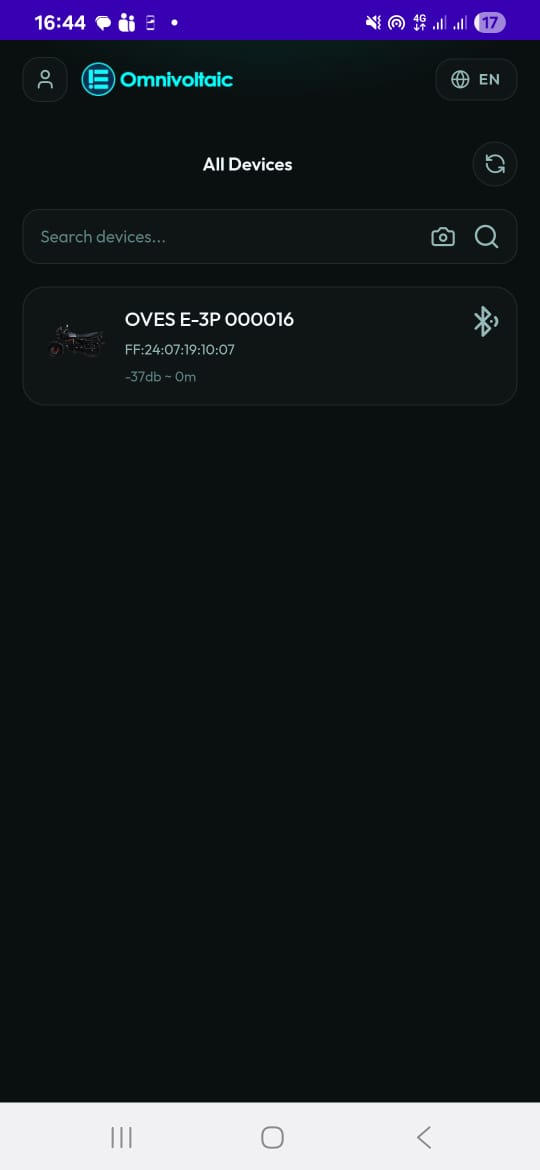
Assets -- Device List & Service Tabs
| Device List | ATT Tab |
|---|---|
 |
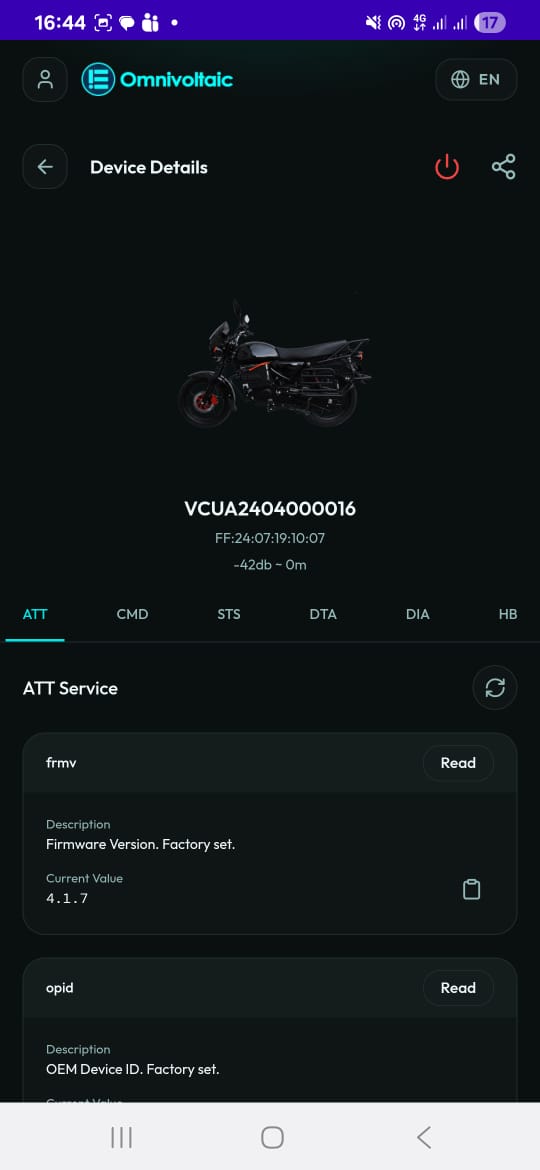 |
| Nearby devices with name, signal, and MAC | Device identity: serial, firmware, model |
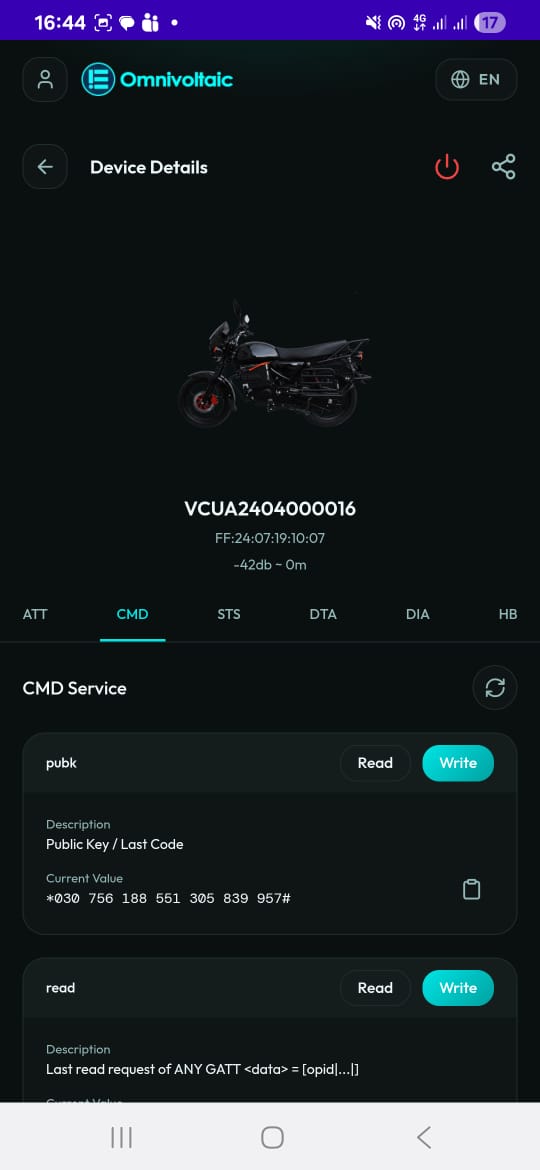
| CMD Tab | STS Tab |
|---|---|
 |
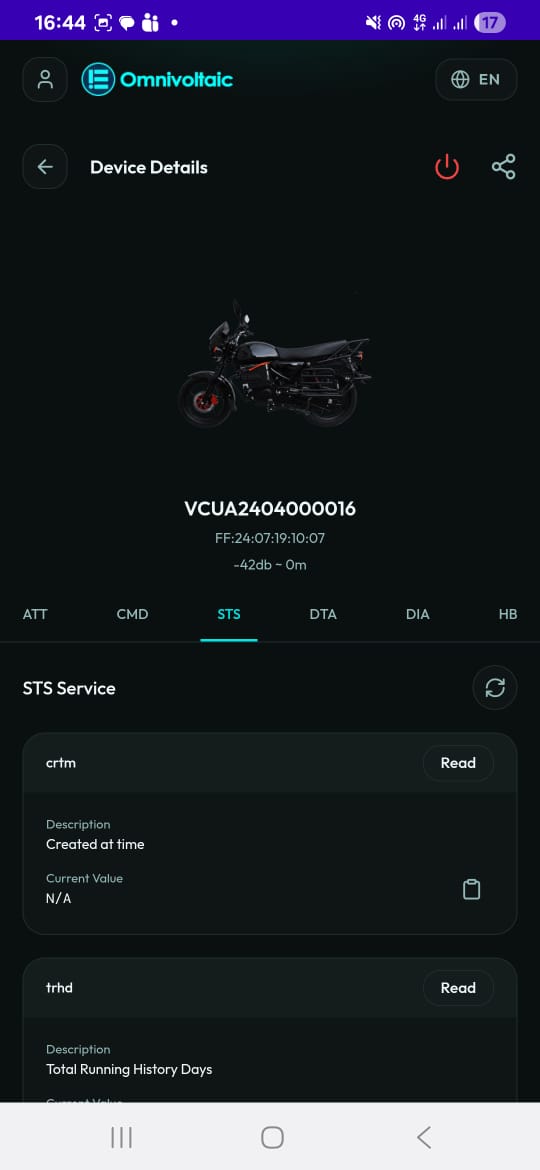 |
| Read/write commands and activation codes | Status: days remaining, activation state |
| DTA Tab | DIA Tab |
|---|---|
 |
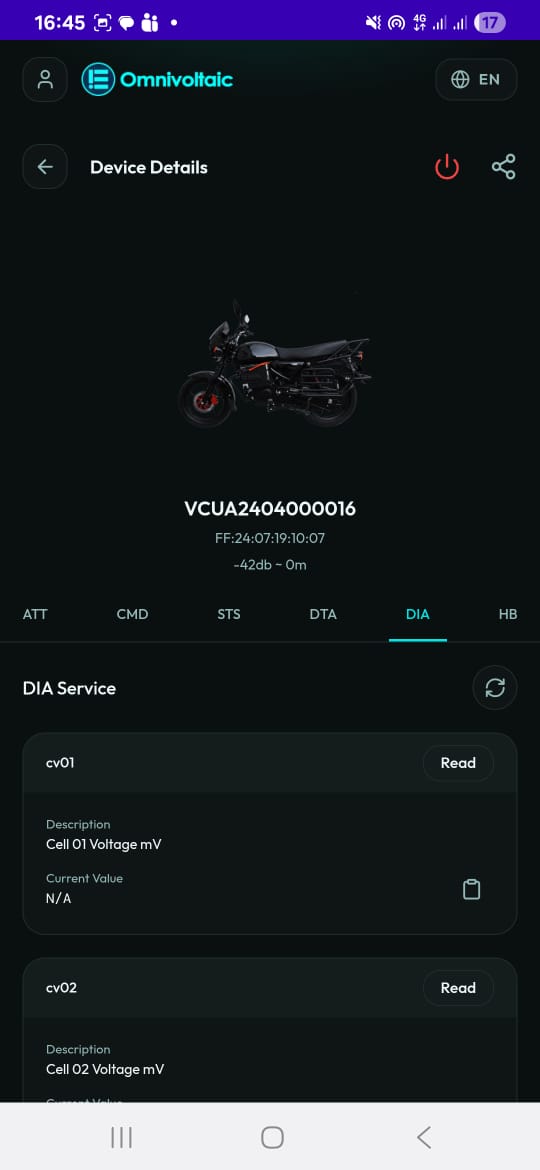 |
| Battery data: voltage, capacity, energy | Diagnostics: cell voltages, temperatures |
| HB Tab |
|---|
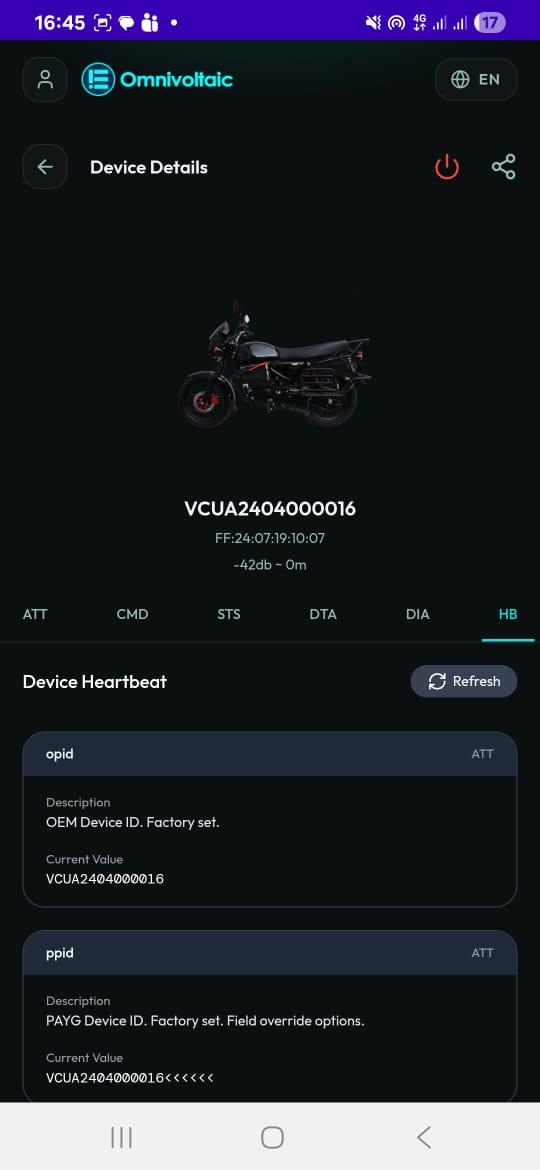 |
| Heartbeat: sends all data to server via MQTT |
My Devices -- Activation
| Overview | Activation Screen |
|---|---|
 |
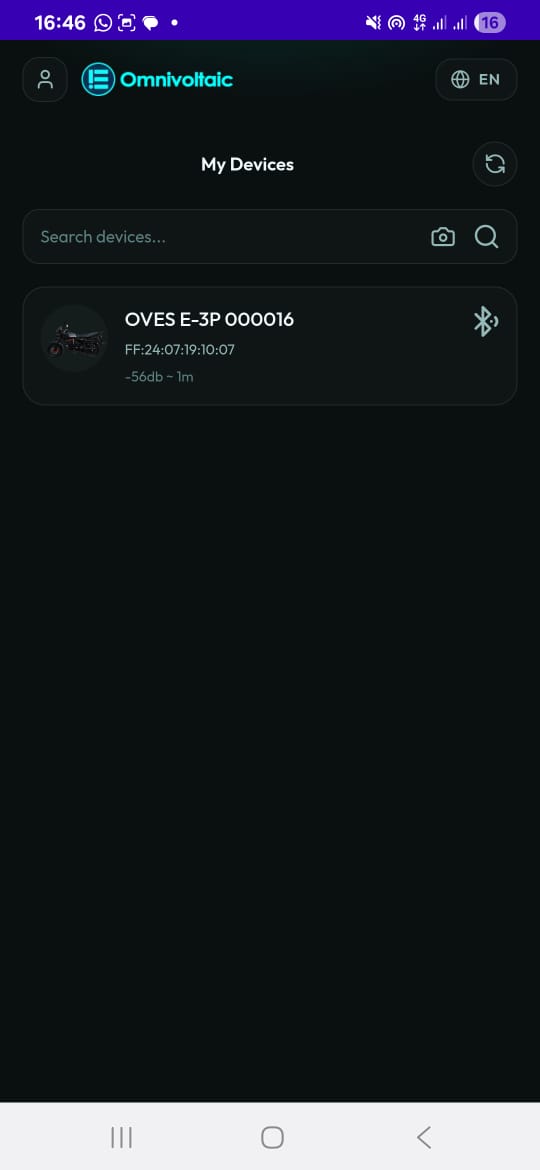 |
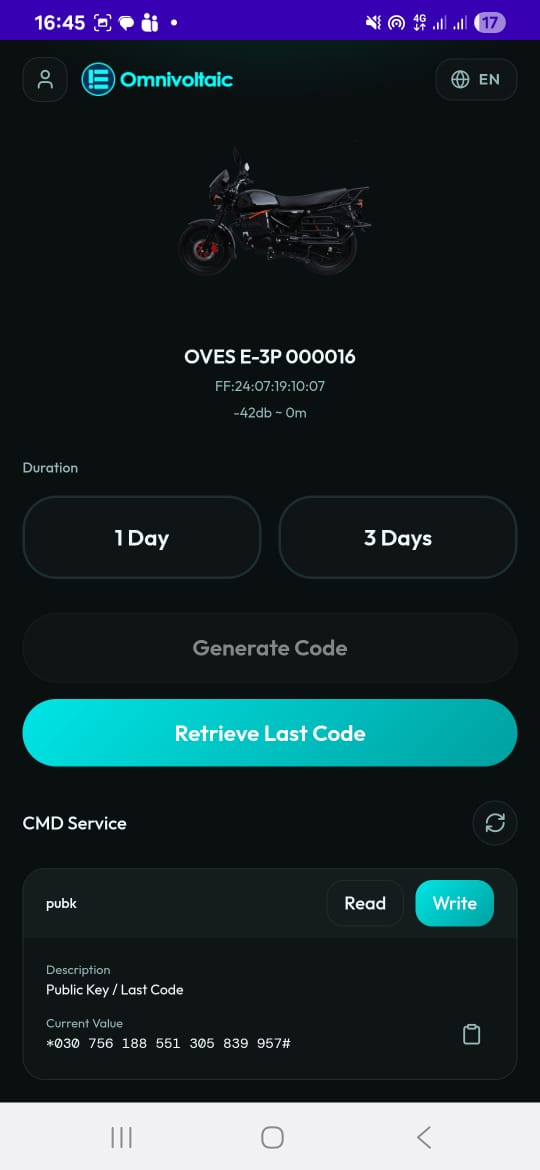
| Device list in My Devices area | Duration selection and activation buttons |
Lesson 6.1 -- Login & Overview (5 min)
Key Points
- A login is required to access the BLE Device Manager
- Two areas are available:
- Assets (BLE Devices) -- full diagnostic tool for technical staff
- My Devices -- streamlined activation tool for distributors
Hands-On Exercise
- Open OvApp and select the BLE Device Manager role
- Log in with your credentials
- Note the two areas available
Lesson 6.2 -- Scanning & Connecting (5 min)
Key Points
- Both areas share the same connection flow
- Your phone scans for nearby OVES devices via Bluetooth
- Devices are listed with name, image, signal strength, and MAC address
- Connect by: tapping the device, searching by name, or scanning its QR code
Hands-On Exercise
- Wait for the Bluetooth scan to complete
- Find your target device in the list
- Connect using each method: tap, search, QR scan
Lesson 6.3 -- Assets: Service Tabs (20 min)
Key Points
Once connected in Assets, you see six service tabs:
| Tab | Purpose | Read | Write |
|---|---|---|---|
| ATT | Device identity (serial numbers, firmware, model) | Yes | No |
| CMD | Commands (activation codes, APN settings, config) | Yes | Yes |
| STS | Status (days remaining, activation state) | Yes | No |
| DTA | Battery data (voltage, capacity, energy in kWh) | Yes | No |
| DIA | Diagnostics (individual cell voltages, temperatures) | Yes | No |
| HB | Heartbeat (sends all data to server via MQTT) | Yes | No |
- You can read values on any tab and copy them to clipboard
- The CMD tab also allows writing values (e.g. activation tokens)
- Written values persist locally so you can see what you last sent
- Automatic MQTT publishing happens whenever a service read completes
Hands-On Exercise
- Connect to a device and go to the ATT tab -- read and copy the serial number
- Go to the STS tab -- check the days remaining
- Go to the DTA tab -- read the battery voltage and energy
- Go to the DIA tab -- review cell voltages and temperatures
- Go to the CMD tab -- read the current value, then write a test activation code
- Go to the HB tab -- trigger a heartbeat and confirm data is sent
Common Issues
| Issue | Solution |
|---|---|
| BLE connection drops | Reconnect; move closer to the device |
| Read times out | Retry the read; re-scan if needed |
| Write appears to fail | Read the CMD value back to confirm |
Lesson 6.4 -- My Devices: Activation (15 min)
Key Points
- Designed for quick device activation without navigating raw service data
- After connecting, you see: device info, duration selector, and two action buttons
Actions:
| Action | What It Does |
|---|---|
| Generate Code | Requests a new activation code from the server for the chosen duration, automatically writes it to the device |
| Retrieve Last Code | Fetches the most recent code generated for this device and writes it again (useful if a previous write was interrupted) |
- Below the buttons: CMD value display, manual read, copy, and write options
- Always use the Disconnect button when done
Hands-On Exercise
- Switch to My Devices and connect to a device
- Select a duration (e.g. 1 day)
- Tap Generate Code -- observe the code being written to the device
- Disconnect and reconnect
- Tap Retrieve Last Code -- observe the same code being re-applied
- Use the Read button to verify the code on the device
- Tap Disconnect when done
Use Cases
Use Case 1: Technician Inspects a Device Reported as Faulty
Scenario: A customer reports that their device stopped working. A technician visits to diagnose the issue using Assets.
Steps:
- Technician opens BLE Device Manager and logs in
- Navigates to Assets and scans for the device
- Connects to the device via QR code scan
- Checks STS tab → "Days Remaining: 0" (activation expired)
- Checks DTA tab → battery voltage is normal (not a hardware issue)
- Checks DIA tab → cell voltages are balanced (no cell failure)
- Goes to CMD tab → writes a new activation code
- Triggers HB → confirms data is sent to the server
Expected Outcome: Technician identifies that the device simply needs reactivation, not repair. Activation code is written and verified.
Use Case 2: Distributor Activates New Devices in Bulk
Scenario: A distributor receives 10 new devices and needs to activate each one for 30 days before delivery to customers.
Steps:
- Distributor opens BLE Device Manager → My Devices
- Connects to the first device (tap from scan list)
- Selects 30 days as the duration
- Taps Generate Code → code is generated and written to the device
- Verifies by tapping Read → code matches
- Taps Disconnect
- Repeats for each of the remaining 9 devices
Expected Outcome: All 10 devices are activated for 30 days and ready for customer delivery.
Use Case 3: Activation Write Interrupted -- Retrieve Last Code
Scenario: During activation, the Bluetooth connection drops before the code was fully written. The distributor needs to re-apply the same code.
Steps:
- Distributor connects to the device in My Devices
- Taps Generate Code → BLE connection drops mid-write
- Reconnects to the device
- Taps Retrieve Last Code (instead of Generate Code)
- The previously generated code is fetched and written successfully
- Taps Read to confirm the code is on the device
Expected Outcome: The same activation code is re-applied without generating a duplicate code.
Use Case 4: Technician Reads Battery Health for Warranty Claim
Scenario: A customer claims their battery is defective within the warranty period. The technician needs to gather diagnostic data.
Steps:
- Technician connects to the device via Assets
- Goes to ATT tab → copies the serial number and firmware version
- Goes to DTA tab → records voltage (3.2V) and capacity
- Goes to DIA tab → notices Cell 3 voltage is significantly lower than other cells
- Triggers HB → sends all readings to the server for the warranty record
- Reports findings: Cell 3 imbalance suggests a manufacturing defect
Expected Outcome: Diagnostic data is collected, sent to the server, and the technician has evidence for the warranty claim.
Knowledge Check
- What is the difference between Assets and My Devices?
- Name the six service tabs in Assets and what each shows.
- Which tab allows you to write values to a device?
- What happens when you trigger a heartbeat?
- When would you use Retrieve Last Code instead of Generate Code?
- What happens automatically when you read a value from any service tab?
- Why should you tap Disconnect when you're done with a device?
Assessment Rubric -- Module 6
| Criteria | Expert (4) | Competent (3) | Developing (2) | Novice (1) |
|---|---|---|---|---|
| Login & Navigation | Logs in, navigates both areas, explains the difference between Assets and My Devices | Logs in and finds both areas | Logs in but confused about which area to use | Cannot log in or find the BLE Device Manager |
| Device Connection | Connects using all three methods, handles scan failures | Connects to a device reliably | Connects but needs a retry or guidance | Cannot establish a Bluetooth connection |
| Assets: Reading Tabs | Reads all 6 tabs, explains each service's purpose, copies values | Reads at least 4 tabs successfully | Reads 2-3 tabs but skips or misunderstands others | Cannot navigate or read from service tabs |
| Assets: Writing (CMD) | Writes values, reads them back, explains persistence and MQTT | Writes a value to CMD and verifies | Writes a value but doesn't verify | Cannot write to the CMD tab |
| Assets: Heartbeat | Triggers HB, explains MQTT publishing, verifies server received data | Triggers a heartbeat successfully | Knows about HB but hasn't triggered one | Unaware of the heartbeat function |
| My Devices: Activation | Generates code, retrieves last code, reads back, explains both flows | Generates and applies an activation code | Generates a code but doesn't verify | Cannot generate or apply an activation code |
| Troubleshooting | Handles BLE drops, re-applies codes, diagnoses device issues | Resolves at least one common issue | Recognizes an issue but needs help resolving | Does not recognize when something went wrong |
| Knowledge Check | Answers all 7 questions correctly | Answers 5-6 correctly | Answers 3-4 correctly | Answers fewer than 3 correctly |
Pass: Average score of 3.0 or above across all criteria.