Module 1: Getting Started
Audience: All users Prerequisite: None
Learning Objectives
By the end of this module, trainees will be able to:
- Download and install OvApp on an Android device
- Launch the app and grant required permissions
- Select their role from the role selection screen
Flow Diagram
The following diagram shows the complete Getting Started flow from download to role selection:
flowchart TD
    A[Start] --> B{Choose Download Method}
    B -->|Scan QR Code| C[Scan QR with Phone Camera]
    B -->|Copy Link| D[Open Link in Browser]
    C --> E[APK File Downloads]
    D --> E
    E --> F{Install Blocked?}
    F -->|Yes| G[Enable Unknown Sources in Settings]
    G --> H[Install OvApp]
    F -->|No| H
    H --> I[Launch OvApp]
    I --> J[Grant Location Permission]
    J --> K[Grant Bluetooth Permission]
    K --> L[Role Selection Screen]
    L --> M{Select Your Role}
    M -->|Attendant| N[Attendant Dashboard]
    M -->|Sales Rep| O[Sales Rep Dashboard]
    M -->|Rider| P[Rider Login]
    M -->|Keypad| Q[Keypad Interface]
    M -->|BLE Device Manager| R[BLE Device Manager]

    style A fill:#4CAF50,color:#fff
    style L fill:#2196F3,color:#fff
    style N fill:#FF9800,color:#fff
    style O fill:#FF9800,color:#fff
    style P fill:#FF9800,color:#fff
    style Q fill:#FF9800,color:#fff
    style R fill:#FF9800,color:#fff
Visual Reference
Download Options
Trainees can download OvApp using either method:
Scan this QR code with your phone camera, or copy the download link below.
Download link: https://apps.omnivoltaic.com/prod/oves.apk
Role Selection Screen
After installation and permissions, the role selection screen appears:
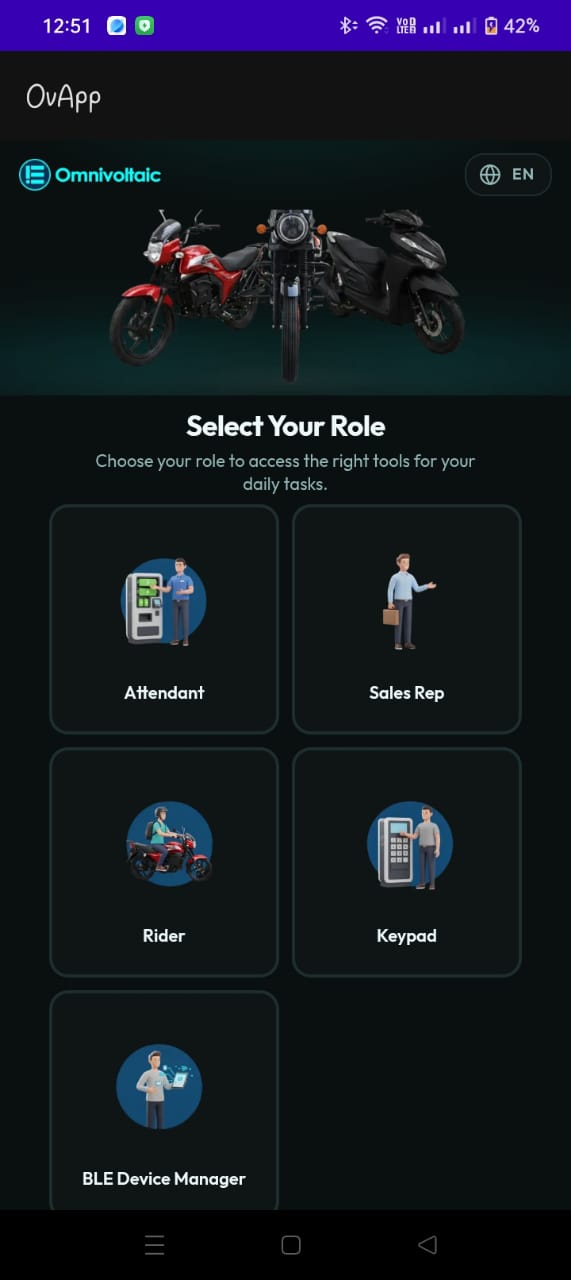
The main screen showing all available roles in OvApp.
Lesson 1.1 -- Downloading OvApp (5 min)
Key Points
- OvApp is distributed as an APK file, not via the Play Store
- Two download methods are available:
- Scan the QR code with your phone camera
- Copy the download link and open it in your browser: https://apps.omnivoltaic.com/prod/oves.apk
Hands-On Exercise
- Using your phone, download the OvApp APK using either method
- Locate the downloaded file in your Downloads folder
- Install the app (allow "Unknown sources" if prompted)
Common Issues
| Issue | Solution |
|---|---|
| "Install blocked" message | Go to Settings > Security > enable "Unknown sources" |
| Download doesn't start | Try a different browser (Chrome recommended) |
| File not found after download | Check the Downloads app or File Manager |
Lesson 1.2 -- First Launch & Permissions (5 min)
Key Points
- On first launch, the app requests permissions:
- Location -- needed for station maps and routing
- Bluetooth -- needed for BLE device communication
- Both permissions are essential for full functionality
Hands-On Exercise
- Open OvApp
- Grant Location permission when prompted
- Grant Bluetooth permission when prompted
Lesson 1.3 -- Role Selection (5 min)
Key Points
- The role selection screen is the entry point to OvApp
- Available roles: Attendant, Sales Representative, Rider, Keypad, BLE Device Manager
- Each role unlocks a different set of features and workflows
- Choose the role that matches your job function
Hands-On Exercise
- On the role selection screen, identify which role applies to you
- Tap your role to enter the app
- Observe the interface that loads -- note the navigation options available
Use Cases
Use Case 1: New Employee First Setup
Scenario: A newly hired station attendant receives their Android phone and needs to set up OvApp for the first time.
Steps:
- The supervisor shares the QR code or download link
- The employee scans the QR code and downloads the APK
- They enable "Unknown sources" and install the app
- On first launch, they grant Location and Bluetooth permissions
- They select the Attendant role
Expected Outcome: The employee sees the Attendant login screen and is ready for Module 4 training.
Use Case 2: Rider Receives Device from Sales Rep
Scenario: A customer has just been onboarded by a sales rep and needs to install the Rider App on their personal phone.
Steps:
- The sales rep shows the customer the QR code on the Getting Started page
- The customer scans it and downloads OvApp
- They install the APK and grant permissions
- They select the Rider role
- They log in with the phone number and temporary password provided by the sales rep
Expected Outcome: The customer sees their Home screen with vehicle and subscription details.
Knowledge Check
- What are the two ways to download OvApp?
- What permissions does OvApp need on first launch and why?
- What happens if you select the wrong role?
- Where do you find the APK file after downloading?
- Name at least three roles available in OvApp.
Assessment Rubric -- Module 1
| Criteria | Expert (4) | Competent (3) | Developing (2) | Novice (1) |
|---|---|---|---|---|
| Download & Install | Downloads, installs, and troubleshoots "Unknown Sources" without any help | Downloads and installs independently | Needs one prompt (e.g. reminded to enable Unknown Sources) | Cannot complete installation without step-by-step guidance |
| Permissions | Grants all permissions immediately and explains why each is needed | Grants all permissions when prompted | Grants permissions but unsure why they are needed | Skips or denies permissions |
| Role Selection | Selects correct role and can explain what each role does | Selects correct role without hesitation | Selects correct role after brief hesitation or one wrong tap | Cannot identify which role to select |
| Knowledge Check | Answers all 5 questions correctly | Answers 4 of 5 correctly | Answers 3 of 5 correctly | Answers fewer than 3 correctly |
Pass: Average score of 3.0 or above across all criteria.