Module 2: Keypad Training
Audience: Passive Customers, Distributors Prerequisite: Module 1 (Getting Started)
Learning Objectives
By the end of this module, trainees will be able to:
- Connect to an OVES device via Bluetooth
- Enter a 21-digit activation code using the keypad
- Verify that the code was accepted
- Troubleshoot common errors
Flow Diagram
The complete Keypad activation flow from app launch to code confirmation:
flowchart TD
    A[Open OvApp] --> B[Select Keypad Role]
    B --> C[No Login Required]
    C --> D[Bluetooth Scan Starts]
    D --> E{Device Found?}
    E -->|No| F[Enable Bluetooth / Move Closer]
    F --> D
    E -->|Yes| G{Connection Method}
    G -->|Tap Device| H[Connect via Tap]
    G -->|Search by Name| I[Search & Connect]
    G -->|Scan QR Code| J[Scan & Connect]
    H --> K[Device Connected]
    I --> K
    J --> K
    K --> L[Keypad Screen Displayed]
    L --> M[Enter 21-Digit Code]
    M --> N[Press Submit]
    N --> O{Code Valid?}
    O -->|Yes| P[✓ Days Updated<br>✓ Last Code Updated<br>✓ Success Message]
    O -->|No| Q[✗ Error Message Displayed]
    Q --> R{Retry?}
    R -->|Yes| M
    R -->|No| S[Verify Code with Agent]

    style A fill:#4CAF50,color:#fff
    style P fill:#4CAF50,color:#fff
    style Q fill:#f44336,color:#fff
    style K fill:#2196F3,color:#fff
Visual Reference
Keypad Overview
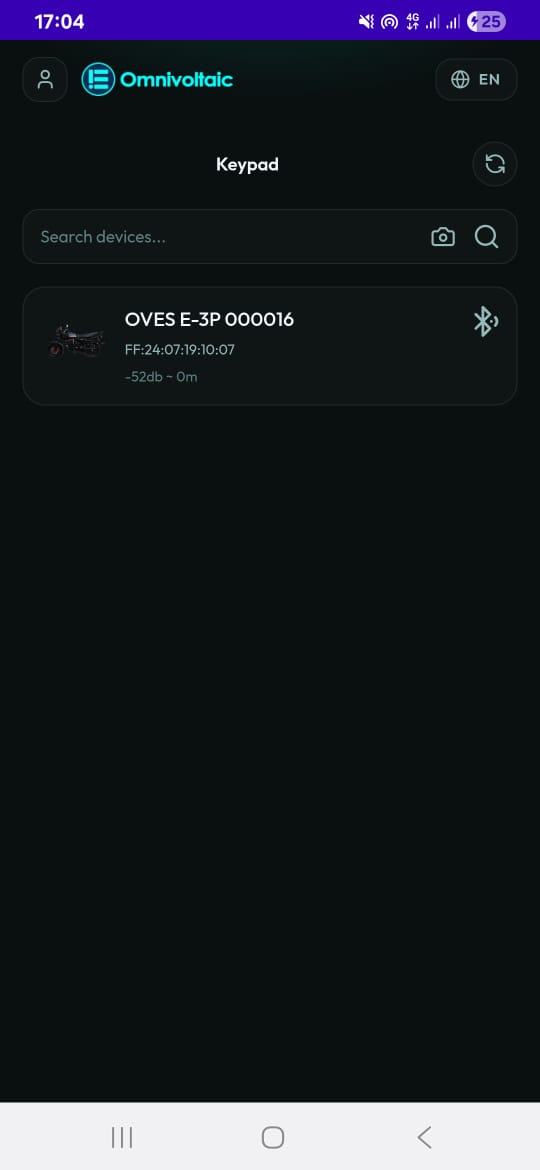
The Keypad interface showing the device scan list and connection options.
Keypad Entry Screen
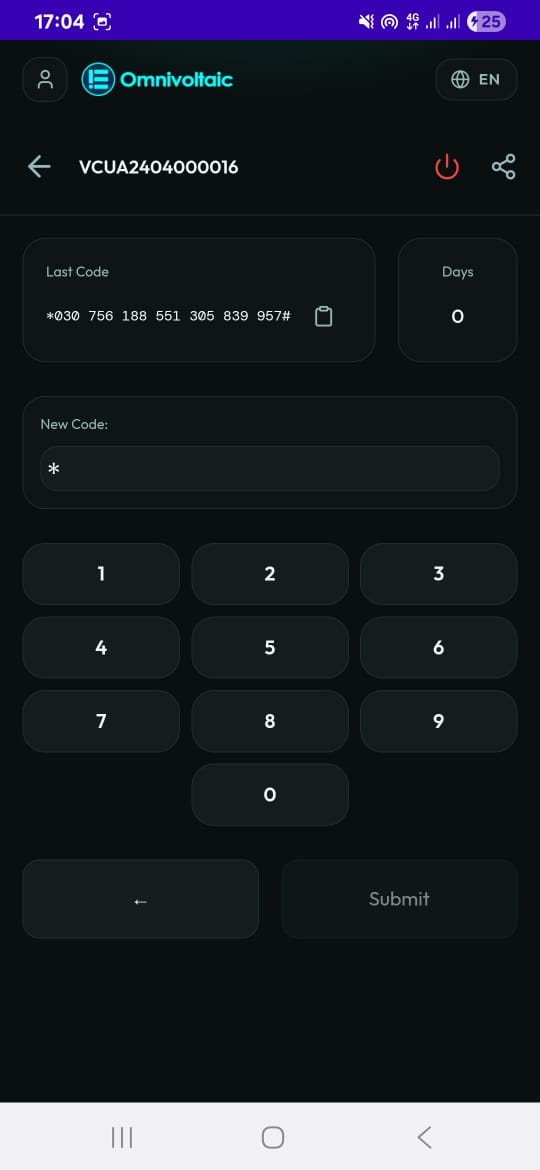
The keypad number pad where the 21-digit activation code is entered.
Lesson 2.1 -- Understanding the Keypad Role (5 min)
Key Points
- The Keypad is for users who only need to enter activation codes
- No login is required -- the app opens directly to the keypad interface
- Codes extend the device's usage time (PAYG model)
- The interface has two screens: device scan list and keypad entry
Lesson 2.2 -- Connecting to a Device (5 min)
Key Points
- The app scans for nearby OVES devices via Bluetooth
- Devices appear in a list with name, image, signal strength, and MAC address
- Three ways to connect: tap the device, search by name, or scan its QR code
Hands-On Exercise
- Open OvApp and select the Keypad role
- Wait for the Bluetooth scan to complete
- Locate your device in the list
- Tap it to connect (or scan the QR code on the device)
Common Issues
| Issue | Solution |
|---|---|
| No devices found | Ensure Bluetooth is enabled; move closer to the device |
| Device disappears from list | Pull down to refresh the scan |
| Connection fails | Retry; ensure no other phone is connected to the same device |
Lesson 2.3 -- Entering an Activation Code (10 min)
Key Points
- Once connected, the keypad screen shows:
- Last Code entered
- Days Remaining on the device
- Number Pad for input
- Activation codes are 21 digits long
- Press Submit to send the code to the device via Bluetooth
- On success: Last Code and Days update, success message appears
- On failure: error message appears
Hands-On Exercise
- Ensure your device is connected (green indicator)
- Enter the provided 21-digit test code using the number pad
- Press Submit
- Verify: Does the "Last Code" display update? Do the "Days" increase?
- Try entering an invalid code -- observe the error message
Common Issues
| Issue | Solution |
|---|---|
| Code rejected | Verify the code with your agent; check for typos |
| Bluetooth disconnects during submit | Reconnect and try again |
| Days don't update | Read the device again; code may not have been accepted |
Use Cases
Use Case 1: Customer Receives Activation Code from Agent
Scenario: A passive customer purchased 7 days of device usage from a local agent and received a 21-digit code via SMS.
Steps:
- Customer opens OvApp and selects Keypad
- Phone scans and finds their home device in the Bluetooth list
- Customer taps the device to connect
- Enters the 21-digit code from the SMS
- Presses Submit
- Confirms "Days Remaining" increased by 7
Expected Outcome: Device is activated for 7 additional days. The "Last Code" field shows the code just entered.
Use Case 2: Code Entry Fails -- Wrong Code
Scenario: A customer types the wrong code (transposed digits) and sees an error message.
Steps:
- Customer connects to the device via Keypad
- Enters the code but makes a typo
- Presses Submit -- error message appears
- Customer double-checks the code from the SMS
- Re-enters the correct 21-digit code
- Presses Submit -- success message appears
Expected Outcome: After correcting the code, the device activates successfully.
Use Case 3: Bluetooth Disconnects Mid-Entry
Scenario: The customer's phone moves out of Bluetooth range while entering the code.
Steps:
- Customer connects to the device
- Starts entering the code
- Bluetooth disconnects (phone moved too far from device)
- Customer moves back within range
- Reconnects to the device from the scan list
- Re-enters and submits the code
Expected Outcome: After reconnection, the code is submitted successfully.
Knowledge Check
- Do you need to log in to use the Keypad?
- How many digits is an activation code?
- What should you check after submitting a code to confirm it worked?
- What do you do if the code is rejected?
- Name three ways to connect to a device from the Keypad screen.
Assessment Rubric -- Module 2
| Criteria | Expert (4) | Competent (3) | Developing (2) | Novice (1) |
|---|---|---|---|---|
| Device Connection | Connects using all three methods (tap, search, QR) without hesitation | Connects reliably using at least one method | Connects but needs a retry or prompt | Cannot establish a Bluetooth connection |
| Code Entry | Enters code accurately on first attempt, verifies days and last code | Enters code and verifies success | Enters code but doesn't verify the result | Makes repeated entry errors or cannot complete entry |
| Troubleshooting | Independently resolves BLE disconnects, wrong codes, and scan failures | Resolves at least one common issue independently | Recognizes an error occurred but needs help resolving it | Does not recognize when something went wrong |
| Knowledge Check | Answers all 5 questions correctly | Answers 4 of 5 correctly | Answers 3 of 5 correctly | Answers fewer than 3 correctly |
Pass: Average score of 3.0 or above across all criteria.