Module 3: Rider App Training
Audience: Riders (electric vehicle owners) Prerequisite: Module 1 (Getting Started)
Learning Objectives
By the end of this module, trainees will be able to:
- Log in to the Rider App using phone number and password
- Navigate the Home screen and understand the My Bike Card
- Find nearby battery swap stations and navigate to them
- View swap and payment history
- Top up their account balance
- Access and manage their profile
- Show their QR code to an attendant for swaps
Flow Diagram
The Rider App usage flow from login through core features:
flowchart TD
    A[Open OvApp] --> B[Select Rider Role]
    B --> C{Returning User?}
    C -->|Yes| D[Welcome Back Screen]
    D --> E{Action}
    E -->|Continue| F[Home Screen]
    E -->|Switch Account| G[Login Screen]
    C -->|No| G
    G --> H[Enter Phone + Password]
    H --> I[Home Screen]
    F --> I

    I --> J{What do you want to do?}

    J -->|Check Vehicle| K[My Bike Card<br>Vehicle ID, Swaps, Status]
    J -->|Find Station| L[Stations Tab]
    J -->|View History| M[Activity Tab]
    J -->|Manage Account| N[Profile Tab]
    J -->|Top Up| O[Top Up Modal]
    J -->|Show QR| P[My QR Code]

    L --> L1[Map with Station Markers]
    L1 --> L2[Tap Station → See Details]
    L2 --> L3[Tap Navigate → Route Drawn]

    M --> M1[Filter: All / Swaps / Payments]
    M1 --> M2[View Transaction Details]

    N --> N1[Account Details]
    N --> N2[My Vehicle]
    N --> N3[Subscription Plan]
    N --> N4[Help & Support]

    O --> O1[Select Amount]
    O1 --> O2[Choose Payment Method]
    O2 --> O3[Enter Transaction ID]
    O3 --> O4[Balance Updated]

    style A fill:#4CAF50,color:#fff
    style I fill:#2196F3,color:#fff
    style P fill:#FF9800,color:#fff
    style O4 fill:#4CAF50,color:#fff
Visual Reference
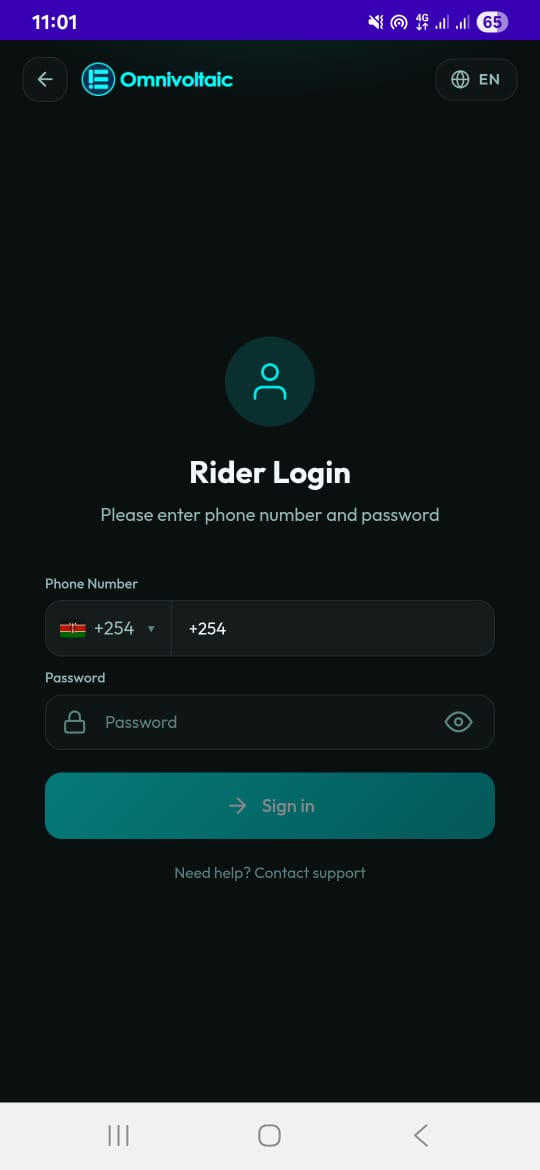
Login & Welcome Back
| Login Screen | Welcome Back |
|---|---|
 |
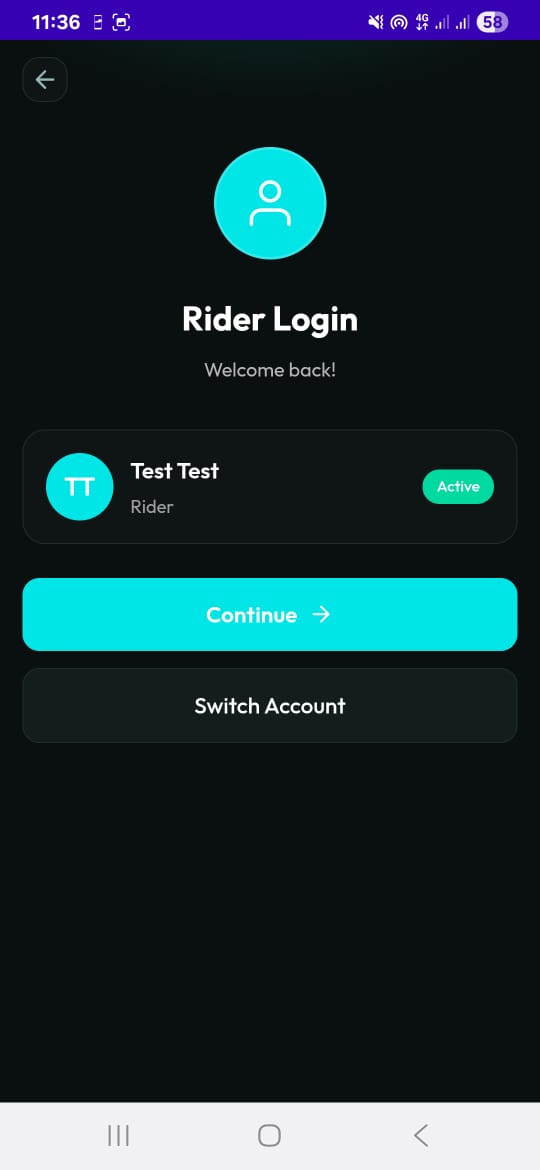 |
| Enter phone number and password | Returning users see Continue or Switch Account |
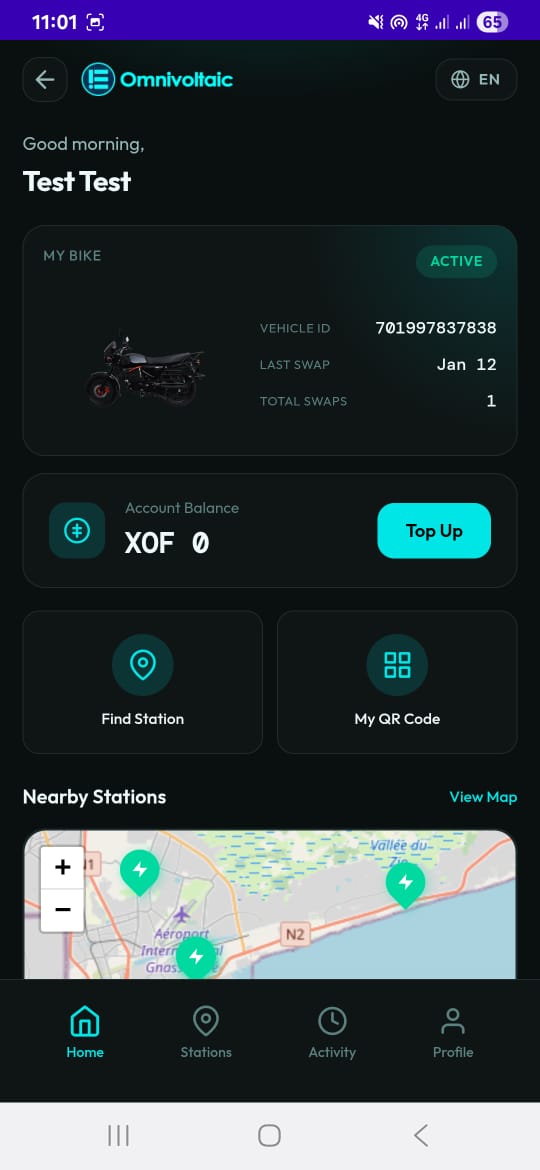
Core Screens
| Home Screen | Stations |
|---|---|
 |
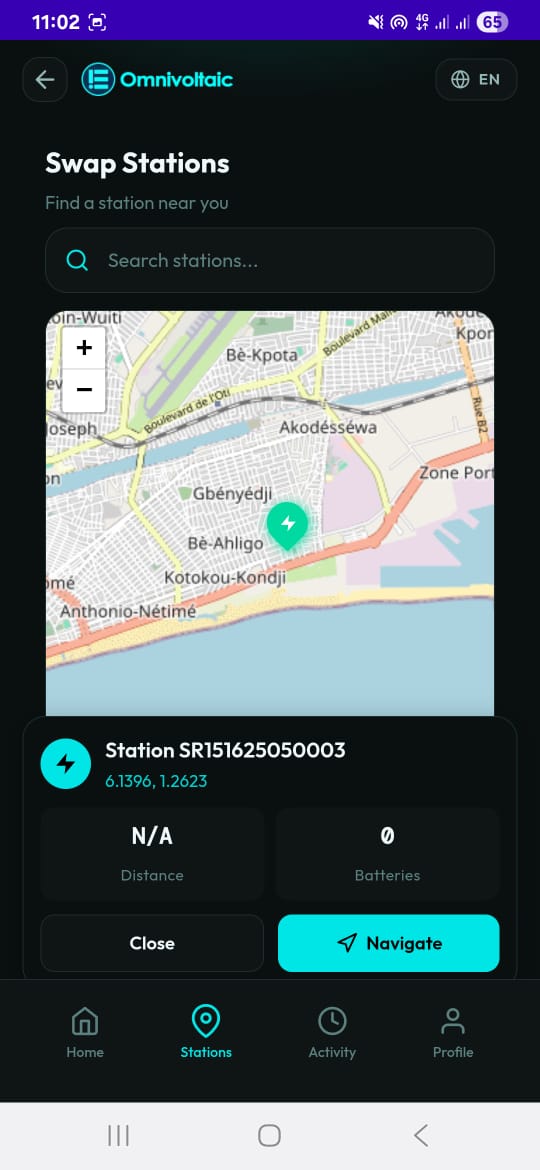 |
| My Bike Card, balance, quick actions | Map view with swap station markers |
| Activity | Profile |
|---|---|
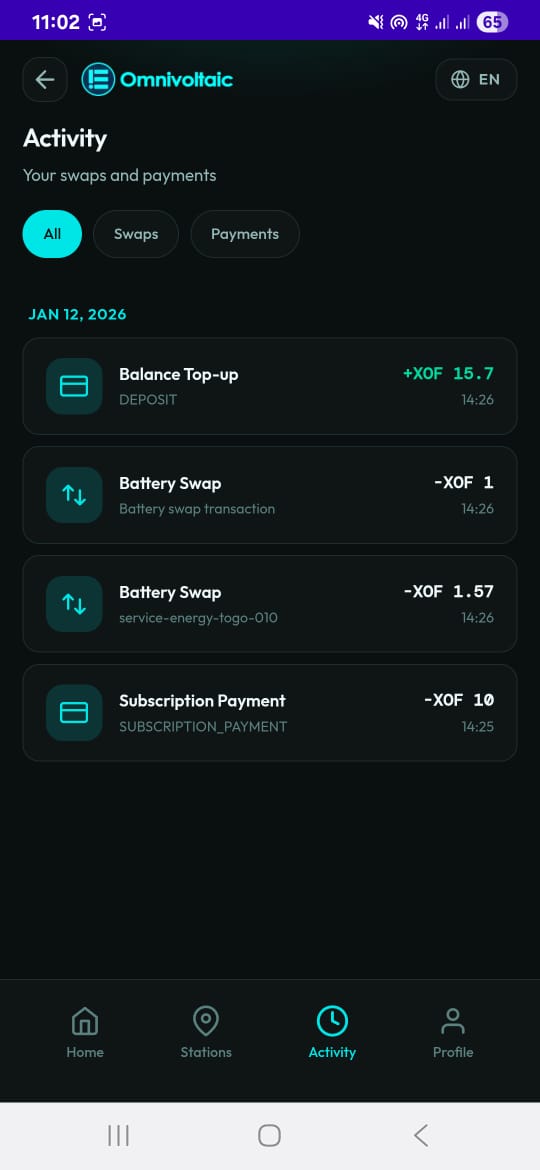 |
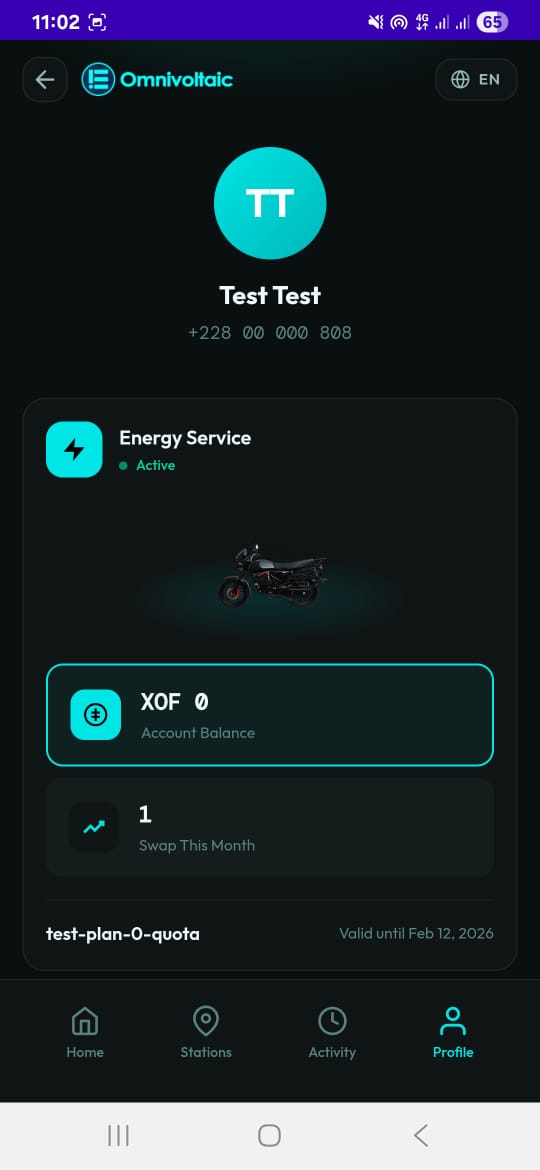 |
| Swap and payment history with filters | Account details, vehicle, plan, support |
Lesson 3.1 -- Logging In (5 min)
Key Points
- Riders log in with phone number and password
- Riders cannot register themselves -- credentials are provided during onboarding
- Returning riders see a "Welcome Back" screen with Continue or Switch Account options
Hands-On Exercise
- Open OvApp and select the Rider role
- Enter your phone number and password
- Tap Login
- Close and reopen the app -- observe the "Welcome Back" screen
- Tap Continue to log in automatically
Lesson 3.2 -- Home Screen (10 min)
Key Points
The Home screen has four sections:
| Section | What It Shows |
|---|---|
| My Bike Card | Vehicle ID, payment status, total swaps, last swap time |
| Account Balance | Current balance in XOF with a Top Up button |
| Quick Actions | Find Station and My QR Code buttons |
| Nearby Stations | Map preview with station markers |
Hands-On Exercise
- Identify your vehicle name and ID on the My Bike Card
- Check your current account balance
- Tap My QR Code -- this is what attendants scan during swaps
- Tap Find Station -- this takes you to the full Stations screen
Lesson 3.3 -- Finding Swap Stations (10 min)
Key Points
- The Stations screen shows a full map with all swap stations
- Each station card shows: name, distance, and number of charged batteries available
- Tap a station to highlight it on the map
- Tap Navigate to draw a route from your current location to the station
- You can search stations by name using the search bar
Hands-On Exercise
- Go to the Stations tab
- Find the nearest station on the map
- Tap on it and note the distance and available batteries
- Tap Navigate and follow the route drawn on the map
- Use the search bar to find a station by name
Lesson 3.4 -- Activity History (5 min)
Key Points
- The Activity screen shows all swaps and payments grouped by date
- Filter tabs: All, Swaps, Payments
- Each entry shows the type, title, amount, and timestamp
Hands-On Exercise
- Go to the Activity tab
- View your recent transactions
- Use the filter tabs to show only swaps, then only payments
Lesson 3.5 -- Profile & Account Management (10 min)
Key Points
- The Profile screen shows personal info, balance, swap count, plan, and vehicle
- Menu items: Account Details, My Vehicle, Subscription Plan, Payment Methods, Help & Support, Logout
- You can change your password from Account Details (the app will log you out after)
Hands-On Exercise
- Go to the Profile tab
- Review your personal information and subscription plan
- Tap Account Details and note the password change option
- Explore Help & Support to see how to contact support
Lesson 3.6 -- Topping Up Your Account (5 min)
Key Points
- From the Home screen, tap Top Up
- Select a preset amount or enter a custom one
- Choose a payment method
- Enter your transaction ID and confirm
- Balance updates immediately after success
Hands-On Exercise
- Tap Top Up on the Home screen
- Walk through the steps (select amount, payment method, transaction ID)
- Verify the balance updates after confirmation
Use Cases
Use Case 1: Rider Needs a Battery Swap
Scenario: A rider's battery is running low and they need to find the nearest station for a swap.
Steps:
- Rider opens the app and checks the Home screen (already logged in via Welcome Back)
- Taps Find Station to open the Stations map
- Identifies the nearest station -- sees it has 3 charged batteries available
- Taps Navigate to draw a route from their current location
- Arrives at the station and taps My QR Code
- Shows the QR code to the station attendant who scans it to start the swap
Expected Outcome: Attendant identifies the rider and begins the battery swap process.
Use Case 2: Rider Checks Swap History After a Dispute
Scenario: A rider believes they were overcharged on their last battery swap and wants to review the details.
Steps:
- Rider opens the app and goes to the Activity tab
- Filters by Swaps
- Finds the transaction in question and reviews: date, amount, battery IDs
- If the amount looks incorrect, they go to Profile > Help & Support to report the issue
Expected Outcome: Rider can see detailed swap history and contact support with specific transaction information.
Use Case 3: Rider Tops Up Account Before a Trip
Scenario: A rider is about to take a long trip and wants to ensure they have enough balance for multiple swaps.
Steps:
- Rider checks their balance on the Home screen
- Taps Top Up and selects the amount they need
- Chooses their preferred payment method
- Enters the transaction ID from their payment confirmation
- Confirms the top-up and verifies the new balance
Expected Outcome: Account balance reflects the added funds, and the rider is ready for their trip.
Knowledge Check
- What credentials do riders use to log in?
- Where do you find your QR code, and what is it used for?
- How do you find the nearest swap station?
- What does the Navigate button do?
- How do you check your swap history?
- What happens after you change your password?
- Name the three payment methods available for top-ups.
Assessment Rubric -- Module 3
| Criteria | Expert (4) | Competent (3) | Developing (2) | Novice (1) |
|---|---|---|---|---|
| Login | Logs in first try, explains Welcome Back flow, can switch accounts | Logs in and uses Welcome Back successfully | Logs in but confused by Welcome Back screen | Cannot log in or enters wrong credentials repeatedly |
| Home Screen Navigation | Identifies all four sections and explains their purpose | Navigates to all key features (QR, stations, balance) | Finds some features but misses others | Cannot locate basic information on the home screen |
| Stations & Navigation | Finds stations, reads availability, navigates, and uses search | Finds a station and uses Navigate successfully | Finds stations on the map but doesn't use Navigate | Cannot find or interact with stations |
| Activity & Profile | Filters history, reviews details, manages profile, and changes password | Views activity history and accesses profile | Views history but doesn't use filters | Cannot find the Activity or Profile tabs |
| Top Up | Completes top-up, verifies balance, explains payment methods | Completes a top-up successfully | Starts top-up but makes errors or needs help | Cannot complete a top-up |
| Knowledge Check | Answers all 7 questions correctly | Answers 5-6 correctly | Answers 3-4 correctly | Answers fewer than 3 correctly |
Pass: Average score of 3.0 or above across all criteria.