Module 5: Sales Rep Training (Customer Onboarding)
Audience: Sales Representatives Prerequisite: Module 1 (Getting Started)
Learning Objectives
By the end of this module, trainees will be able to:
- Log in with employee credentials
- Complete the full 8-step customer onboarding flow
- Register a new customer in Odoo
- Select a package and subscription plan
- Collect payment and create a subscription order
- Link a vehicle to the customer's subscription via QR scan
- Assign a battery via Bluetooth and calculate initial electricity cost
- Provide the customer with their receipt and temporary password
Flow Diagram
The complete 8-step Sales Rep Customer Onboarding workflow:
flowchart TD
    A[Open OvApp] --> B[Select Sales Rep Role]
    B --> C[Login with Employee Credentials]
    C --> D["Session Check: Resume or New?"]
    D --> E["Step 1: Customer"]

    E --> E1[Fill in Name, Phone, Email, Address]
    E1 --> E2[Register Customer in Odoo]
    E2 --> F["Step 2: Package"]

    F --> F1[Browse Product Packages]
    F1 --> F2["Select Package<br>(Product + Battery Swap Privilege)"]
    F2 --> G["Step 3: Subscription"]

    G --> G1[Choose Payment Plan]
    G1 --> G2["Select Frequency & Price<br>(Weekly, Monthly, etc.)"]
    G2 --> H["Step 4: Preview"]

    H --> H1["Review Summary:<br>Customer + Package + Plan + Cost"]
    H1 --> I["Step 5: Payment"]

    I --> I1{Payment Method}
    I1 -->|Payment QR| I2[Scan Payment QR]
    I1 -->|Manual Receipt| I3[Enter Receipt Code]
    I2 --> I4[Subscription Order Created in Backend]
    I3 --> I4

    I4 --> J["Step 6: Vehicle"]
    J --> J1[Scan QR Code on Physical Vehicle]
    J1 --> J2[Vehicle Linked to Subscription]

    J2 --> K["Step 7: Battery"]
    K --> K1[Scan Battery QR → BLE Connect]
    K1 --> K2[Read ATT → Battery ID]
    K2 --> K3[Read DTA → Energy Level]
    K3 --> K4[Calculate Initial Electricity Cost]
    K4 --> K5[Report Service via MQTT]

    K5 --> L["Step 8: Done"]
    L --> L1["Receipt:<br>Name, Phone, Package,<br>Subscription ID, Vehicle,<br>Battery, Amount, Temp Password"]
    L1 --> L2[Share Temp Password with Customer]
    L2 --> L3[Tap New Registration → Step 1]

    style A fill:#4CAF50,color:#fff
    style E fill:#2196F3,color:#fff
    style F fill:#2196F3,color:#fff
    style G fill:#2196F3,color:#fff
    style H fill:#2196F3,color:#fff
    style I fill:#FF9800,color:#fff
    style J fill:#9C27B0,color:#fff
    style K fill:#9C27B0,color:#fff
    style L fill:#4CAF50,color:#fff
Visual Reference
Step 1 -- Customer Registration
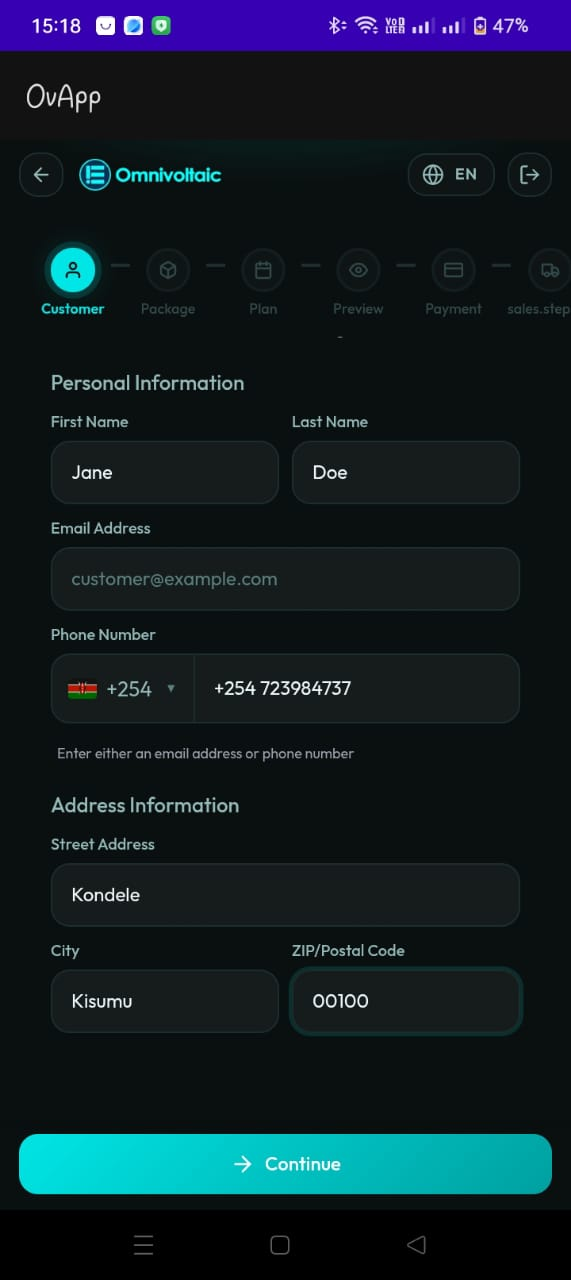
Enter the new customer's personal details: name, phone, email, address.
Step 2 -- Package Selection
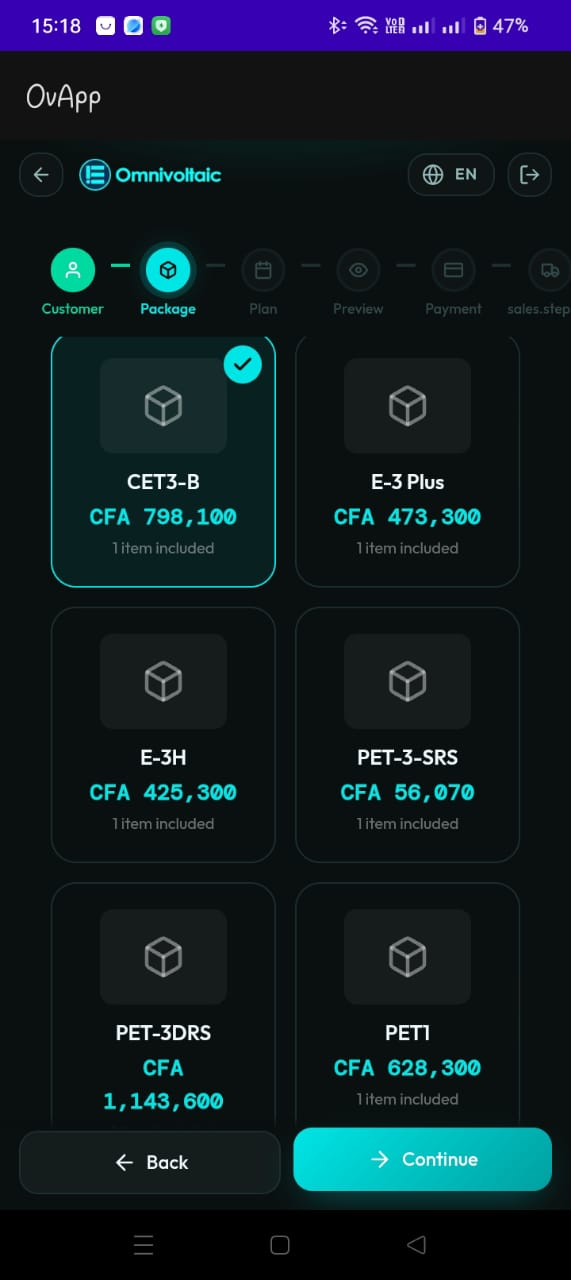
Browse and select a product package for the customer.
Step 3 -- Subscription Plan
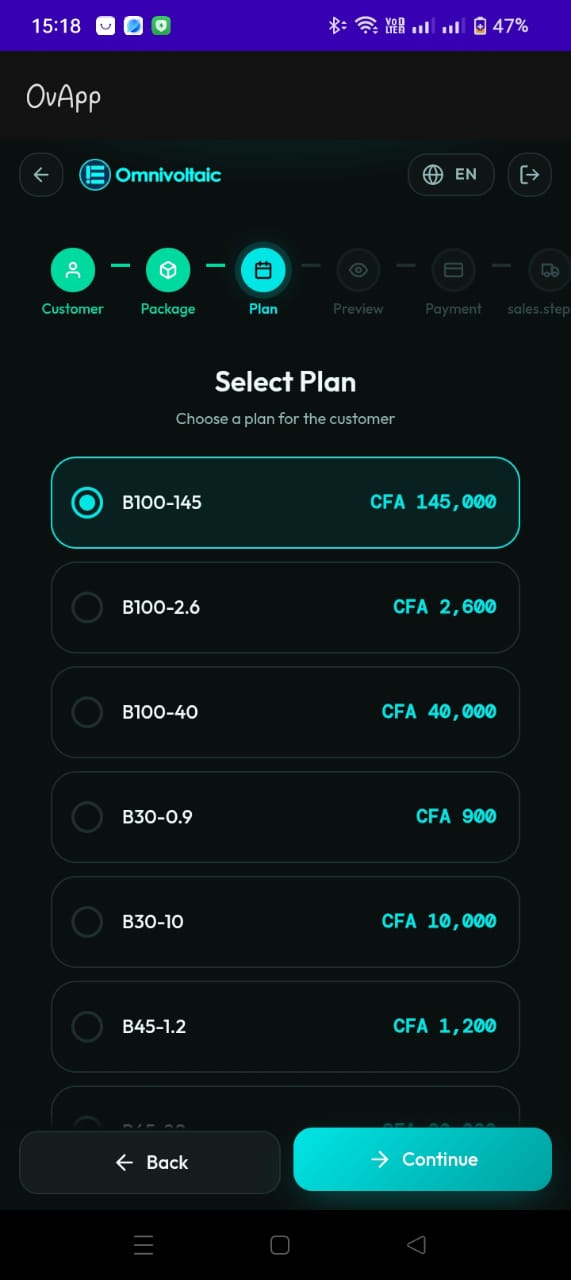
Choose the payment plan that suits the customer's budget.
Step 4 -- Preview
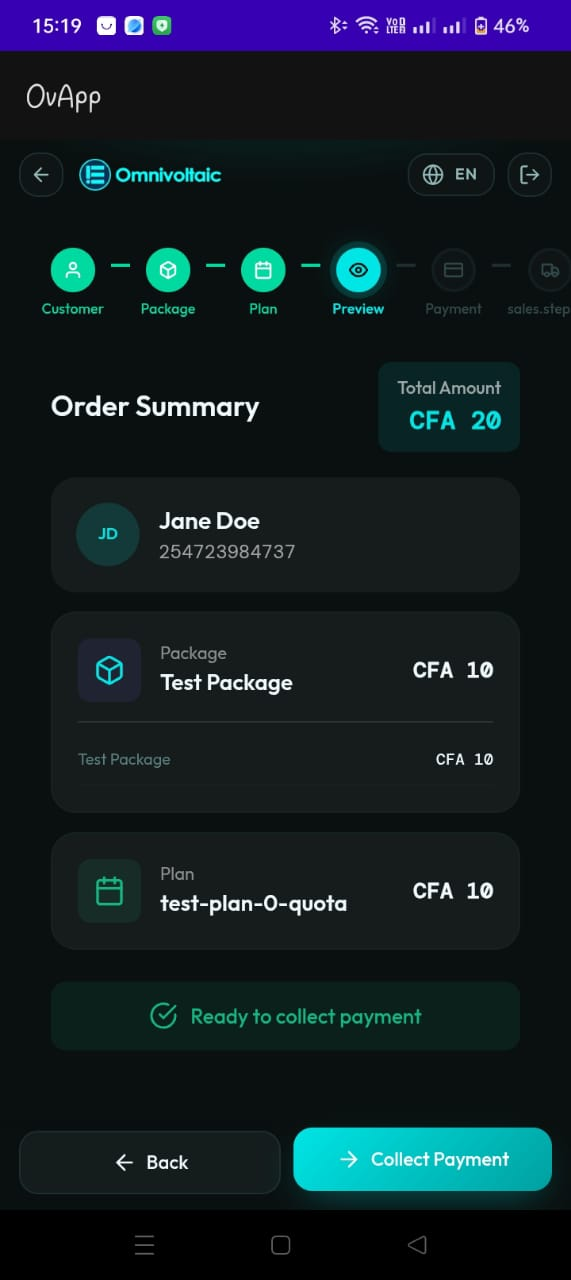
Review all selections before proceeding to payment.
Step 5 -- Payment
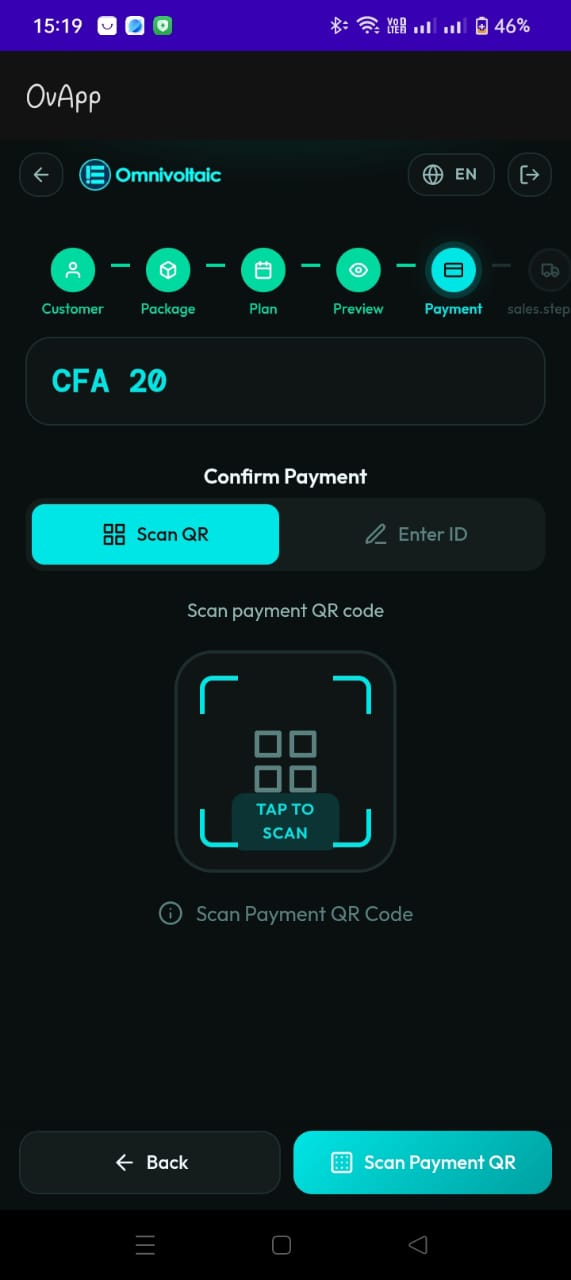
Collect payment via QR scan or manual receipt entry.
Lesson 5.1 -- Login & Overview (5 min)
Key Points
- Sales reps log in with employee credentials
- The flow has 8 steps: Customer > Package > Subscription > Preview > Payment > Vehicle > Battery > Done
- A progress timeline at the top shows the current step
- Session persistence -- if the app is interrupted, you can resume where you left off
Hands-On Exercise
- Open OvApp and select the Sales Representative role
- Log in with your employee credentials
- Observe the 8-step progress bar
Lesson 5.2 -- Step 1: Customer Registration (10 min)
Key Points
- Fill in the customer's details: name, phone number, email, address
- The app registers the customer in Odoo (the backend system)
- First Name, Last Name, and Phone Number are required
Hands-On Exercise
- Enter a test customer's details
- Verify all required fields are filled
- Tap Continue and confirm the customer was registered
Validation Tips
- At least one contact method (phone or email) must be provided
- Phone numbers should include the correct country code
Lesson 5.3 -- Steps 2 & 3: Package and Subscription (10 min)
Key Points
Step 2 -- Package:
- Browse product packages displayed as cards
- Each package bundles a main product (e.g. electric motorcycle) with a battery swap privilege
- Select one package (checkmark appears)
Step 3 -- Subscription:
- Choose a payment plan (weekly, monthly, etc.)
- Plans are filtered to match the selected package
- Only one plan can be selected
Hands-On Exercise
- Browse the available packages and select one
- Move to the Subscription step and choose a payment plan
- Note the price and frequency
Lesson 5.4 -- Steps 4 & 5: Preview and Payment (10 min)
Key Points
Step 4 -- Preview:
- Review: customer details, package, subscription plan, total cost
- Verify everything is correct before payment
Step 5 -- Payment:
- Collect payment: scan QR or enter receipt manually
- On success, the app creates the subscription order in the backend
Hands-On Exercise
- Review the preview summary -- is everything correct?
- Proceed to payment
- Practice scanning a payment QR code
- Try the manual receipt entry method
Common Issues
| Issue | Solution |
|---|---|
| QR code invalid/expired | Show error, allow retry |
| Manual receipt rejected | Check format, re-enter |
| Payment not confirming | Verify internet connectivity |
Lesson 5.5 -- Steps 6 & 7: Vehicle and Battery (15 min)
Key Points
Step 6 -- Vehicle:
- Scan the QR code on the physical vehicle/product
- The app links the vehicle to the customer's subscription
Step 7 -- Battery:
- Scan the battery QR code and connect via Bluetooth
- The app reads battery ID (ATT service) and energy level (DTA service)
- Calculates the initial electricity cost
- Reports service completion to the backend
Hands-On Exercise
- Scan the QR code on the demo vehicle
- Confirm the vehicle is linked
- Scan a battery's QR code
- Wait for BLE connection and energy reading
- Observe the calculated initial cost
Lesson 5.6 -- Step 8: Done (10 min)
Key Points
- The receipt shows: customer name, phone, package, subscription ID, vehicle ID, battery, amount paid, and temporary password
- The temporary password allows the customer to log into their Rider App
- Advise the customer to change their password on first login
Hands-On Exercise
- Review the final receipt
- Identify the temporary password
- Practice explaining to the customer how to use their password
- Tap New Registration to start another onboarding
Use Cases
Use Case 1: Full New Customer Onboarding
Scenario: A sales rep meets a new customer in the field who wants to purchase an electric motorcycle with a battery swap subscription.
Steps:
- Sales rep logs in and starts a new registration
- Customer: Fills in the customer's name, phone (+254...), and email → registered in Odoo
- Package: Selects the "E-Moto Standard" package (motorcycle + swap privilege)
- Subscription: Chooses the "Monthly" plan at KES 3,500/month
- Preview: Reviews all details with the customer → both confirm
- Payment: Customer pays → sales rep scans the QR → subscription order created
- Vehicle: Scans the QR code on the motorcycle chassis → linked to subscription
- Battery: Scans the battery → BLE reads 1.8 kWh → initial cost calculated
- Done: Receipt generated → shares temporary password with customer
Expected Outcome: Customer is fully onboarded, can log into the Rider App, and the vehicle/battery are linked to their subscription.
Use Case 2: App Interrupted Mid-Flow (Session Persistence)
Scenario: The sales rep is at Step 5 (Payment) when they receive a phone call. The app goes to background.
Steps:
- Sales rep is about to collect payment at Step 5
- Incoming call interrupts the app
- After the call, sales rep reopens OvApp
- App detects the saved session and offers to resume
- Sales rep resumes at Step 5 (Payment) with all previous data intact
- Completes payment and continues through Steps 6-8
Expected Outcome: No data is lost. The onboarding resumes exactly where it was interrupted.
Use Case 3: Customer Wants to Compare Packages
Scenario: The customer is unsure which package to choose and wants to see all options.
Steps:
- Sales rep completes Step 1 (Customer registration)
- At Step 2 (Package), browses through all available packages
- Shows the customer each package card with its description and price
- Customer selects their preferred option
- Moves to Step 3 to view compatible subscription plans
- Customer compares weekly vs monthly pricing
- Selects the monthly plan and proceeds
Expected Outcome: Customer makes an informed choice after reviewing all available options.
Use Case 4: Payment Fails -- Manual Receipt Entry
Scenario: The payment QR code scan fails, so the sales rep needs to enter the receipt manually.
Steps:
- Sales rep reaches Step 5 (Payment)
- Attempts to scan the payment QR → scan fails (lighting issue)
- Customer completes the payment on their phone
- Customer shows the payment confirmation SMS with the transaction code
- Sales rep taps Manual Entry and types the receipt code
- Payment confirms and subscription order is created
Expected Outcome: Payment is recorded via manual entry, and the flow continues normally.
Knowledge Check
- What are the 8 steps of the customer onboarding flow?
- What backend system does Step 1 register the customer in?
- What does a package bundle together?
- What happens if the app is interrupted mid-flow?
- At which step is the subscription order created in the backend?
- What does Step 7 (Battery) calculate?
- What should you tell the customer about their temporary password?
Assessment Rubric -- Module 5
| Criteria | Expert (4) | Competent (3) | Developing (2) | Novice (1) |
|---|---|---|---|---|
| Customer Registration | Fills all fields correctly, explains Odoo registration, handles validation errors | Registers a customer successfully | Registers but misses optional fields or needs a retry | Cannot complete the registration form |
| Package & Subscription | Browses all packages, explains bundling, selects correct plan, explains pricing | Selects a package and plan correctly | Selects package but struggles with plan selection | Cannot navigate the package or plan screens |
| Preview & Payment | Reviews all details, catches errors, handles both payment methods, explains order creation | Reviews and collects payment successfully | Completes review but makes a payment entry error | Cannot navigate preview or collect payment |
| Vehicle & Battery | Scans both QR codes, reads BLE data, explains cost calculation and MQTT reporting | Scans vehicle and battery, completes linking | Scans vehicle but struggles with battery BLE step | Cannot complete vehicle or battery scanning |
| Done & Handoff | Reviews receipt, explains temp password, advises password change, starts new registration | Shares receipt and password with customer | Shares receipt but forgets the password or advice | Cannot locate the receipt or temp password |
| Session Persistence | Demonstrates resume after interruption, explains how persistence works | Knows about session persistence | Aware of the feature but hasn't tested it | Does not know about session persistence |
| Knowledge Check | Answers all 7 questions correctly | Answers 5-6 correctly | Answers 3-4 correctly | Answers fewer than 3 correctly |
Pass: Average score of 3.0 or above across all criteria.