Working with SharePoint from Microsoft Teams
A practical guide for finding files, sharing them properly, recovering deleted ones, and working with SharePoint sites — without ever leaving Teams if you don't want to.
The Big Idea: Teams is the Front Door, SharePoint is the Building
Most members think Teams and SharePoint are two different places. They're not.
Every Team in Microsoft Teams has a SharePoint site behind it. When you click the Files tab in a channel, you're already in SharePoint — Teams is just a friendly window into it.
This one fact solves most SharePoint confusion:
- A Team in Teams = a site in SharePoint
- A channel = a folder in that site's document library
- A file in a channel's Files tab = a file in SharePoint
- A link to a file you share in chat = a SharePoint link
You don't need to choose between Teams and SharePoint. You're already using SharePoint every day. This page just shows you how to use it well.
Three Ways to Get to a File
There's no single "right" path — pick whichever fits the moment.
| Path | When to use |
|---|---|
| Teams → channel → Files tab | Day-to-day work when you know which team/channel |
| OneDrive (Teams sidebar) → Quick access → site | You want a unified view across all your sites |
| Browser → SharePoint site directly | You need version history, advanced sharing, or bulk actions |
Method 1: Teams Channel → Files
- In Teams, open the team and channel you need
- Click the Files tab at the top of the channel
- Browse or search the files
That's a SharePoint folder. Anything you upload here lives in SharePoint, with full version history and sharing.
Method 2: OneDrive in the Teams Sidebar (Recommended)
OneDrive gives you direct access to SharePoint sites and team files in one place.
- In the left app bar of Teams, click OneDrive (the cloud icon)
- In the OneDrive left menu, look for Quick access
- Your SharePoint team sites appear here — for example OVES 全体, OVES : Software 软件工程
- Click any site to browse its files

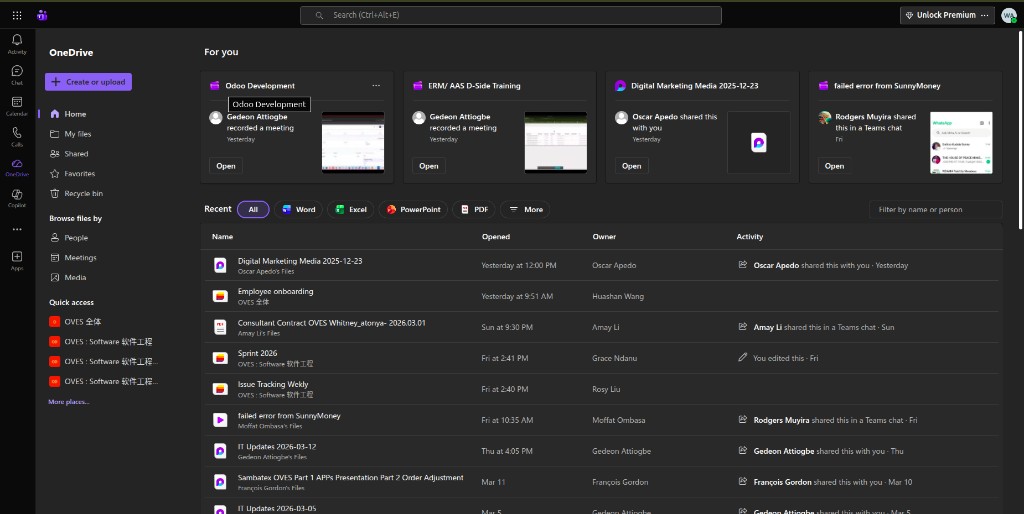
In OneDrive's left menu you'll also see:
- Recent — files you've opened recently (across all sites)
- Shared — files shared with you
- My files — your personal OneDrive
Method 3: Open the Full SharePoint Site in a Browser
When you need version history, advanced sharing, or bulk actions:
- Open OneDrive and navigate to a site via Quick access
- Click Open in SharePoint (or Open in browser) in the top bar
- The full SharePoint site opens in your browser
Anatomy of a SharePoint Site
When you first open a SharePoint site in the browser, it can feel unfamiliar. Here's what you're looking at:
| Area | What it is |
|---|---|
| Documents | The main file library — same files you see in the Teams "Files" tab |
| Channel folders | Inside Documents, you'll see one folder per Teams channel |
| Pages | Internal news posts and wiki-style pages (less common but worth knowing) |
| Site navigation (left menu) | How to move between Documents, Pages, and other site areas |
| Site contents | The full list of everything in the site — libraries, lists, pages |
If you only ever click 'Documents' and back, that's fine.
Most members spend their entire SharePoint life in the Documents library. You don't need to master the rest to do your job.
Searching Across All Your Sites
This is the single biggest productivity unlock in SharePoint. Most people search inside one channel, find nothing, and give up. They don't know they can search across every site they have access to in one click.
Search from OneDrive
- Click in the search bar at the top of OneDrive (or press Ctrl+Alt+E)
- Type what you're looking for — a filename, a phrase from inside a document, an author's name
- Results come from all SharePoint sites + your OneDrive at once
Search from Teams
- Press Ctrl+E (or click the search bar at the top of Teams)
- Type your query
- Click the Files tab in the results — same content, different door
Filter to find faster
In the search results page, use filters to narrow down:
- File type — Word, Excel, PDF, PowerPoint
- Modified date — last week, last month, this year
- Author / modified by — who created or last edited the file
- Site — limit to a specific SharePoint site
Rule of thumb
Before asking a colleague "where's that file?", search for it. 9 times out of 10 you'll find it in 5 seconds.
Sharing Files the Right Way
Sharing is where most teams accidentally create chaos. Two simple rules will save you hours of confusion later.
Rule 1: Always share a link, never the file
Emailing a Word document as an attachment instantly creates version chaos — you have one copy, the recipient has another, and a week later nobody knows which is current.
If it lives in SharePoint, share the link. Never the file.
To share a link:
- Right-click the file in OneDrive, Teams Files, or SharePoint
- Click Share (or Copy link)
- Paste the link into chat, email, or wherever
Everyone is now looking at the same file. Edits show up live. Versions stay in one place.
Rule 2: Choose the right access level
When you click Share, you'll see options like:
| Option | Meaning | When to use |
|---|---|---|
| People in [your organisation] with the link | Anyone at OVES with the link can open it | Default for internal files |
| Specific people | Only the people you list | Sensitive files, or when you don't want it forwarded |
| Anyone with the link | Anyone — even outside OVES | Rare; use only for public-facing files |
And the permission level:
| Level | What they can do |
|---|---|
| Can edit | Open, change, save changes |
| Can view | Open and read, but not change |
| Can review | Add comments and suggestions, but not edit directly |
Default access can be wider than you think
Always check who the link is shared with before clicking Send. "Anyone with the link" means anyone — including someone who forwards the link outside the company.
Version History and Recovering Deleted Files
This is the "I deleted it" rescue. Make sure you know it exists before you need it.
Version History — roll back any file
Every file in SharePoint automatically saves a new version every time someone edits it. You can go back to any earlier version, instantly.
- Right-click the file in OneDrive or SharePoint
- Click Version history
- See every version, with who edited it and when
- Click any version → Restore to roll back, or open it as a copy
This works even if multiple people made changes you don't agree with. Roll back. Done.
Recycle Bin — undelete a file
If you delete a file, it's not gone. It goes to the Recycle Bin and stays there for ~93 days.
- Open the SharePoint site in your browser (Method 3 above)
- In the left menu, click Recycle Bin
- Find your file → click Restore
If the file isn't there, it may have been emptied by a site owner. It's still recoverable for ~30 more days from the second-stage Recycle Bin — ask your site owner.
These two features have saved more careers than any other in Microsoft 365.
Don't make a "personal copy in case it gets deleted." Trust version history and the Recycle Bin instead — they're built for exactly this.
Quick Reference
| Task | Where to Go |
|---|---|
| Open a SharePoint site | Teams sidebar → OneDrive → Quick access → click a site |
| Find a file (any site) | OneDrive search (Ctrl+Alt+E) or Teams search (Ctrl+E), filter by Files |
| Open the full SharePoint site | OneDrive → site → Open in SharePoint |
| Share a file | Right-click → Share → check access level before sending |
| See who edited a file | Right-click → Version history |
| Roll back to an older version | Version history → click a version → Restore |
| Recover a deleted file | Site in browser → Recycle Bin → Restore |
Common Pitfalls
| Pitfall | Better way |
|---|---|
| "I emailed myself the file so I could find it later." | Pin it in OneDrive Quick access, or just search for it. |
| "I have three versions of the budget on my desktop." | Use the SharePoint version. Delete the desktop copies now. |
| "I share files as attachments — it's faster." | Sharing a link is one click and keeps everyone on the same version. |
| "I can't find anything in SharePoint, it's a mess." | You're searching the wrong place. Use OneDrive search across all sites. |
| "I'll keep my own copy in case it gets deleted." | Version history and the Recycle Bin already do this. Stop making copies. |
| "I'm not sure if this link is shared too widely." | Right-click → Manage access to see exactly who has it. |
Troubleshooting
| Issue | Action |
|---|---|
| Don't see OneDrive in the Teams sidebar | Click Apps (+) at the bottom of the sidebar and add OneDrive. |
| SharePoint site not in Quick access | Open the site once from a channel's Files tab — it will appear in Quick access after first use. |
| Can't find a file anywhere | Search in OneDrive (Ctrl+Alt+E) and filter by Files. If still missing, check the Recycle Bin. |
| No access to a site | Ask the channel owner or your manager to add you to the team. |
| Share button is greyed out | The site owner has restricted external sharing. Contact them. |
| Version history is empty | Versioning was disabled on that library. Site owner can re-enable it. |
See Also
- New Employee Onboarding (Teams) — Trainer guide for the Teams basics